Operating the hardware
Mengoperasikan perangkat keras
Follow these steps to operate the scoring-board hardware. Turn on the equipment in this order before opening Skoria.
Langkah-langkah mengoperasikan hardware pada scoring board. Nyalakan peralatan dengan urutan ini sebelum membuka Skoria.
- Turn on the scoring board's wall switch.
Nyalakan saklar dinding scoring board.
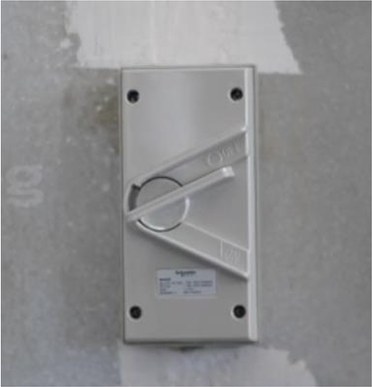
The wall switch in the OFF position.Saklar dinding dalam keadaan OFF. 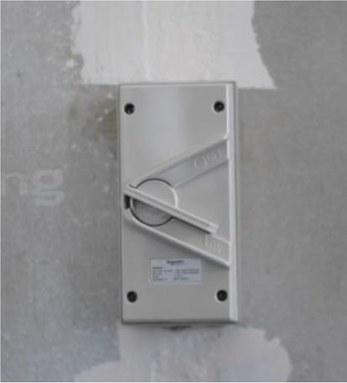
The wall switch in the ON position.Saklar dinding dalam keadaan ON. - Turn on the converter and processor at the rack panel. Press the switch on the rack panel.
Tekan saklar pada panel rak agar converter dan processor berada dalam keadaan ON.
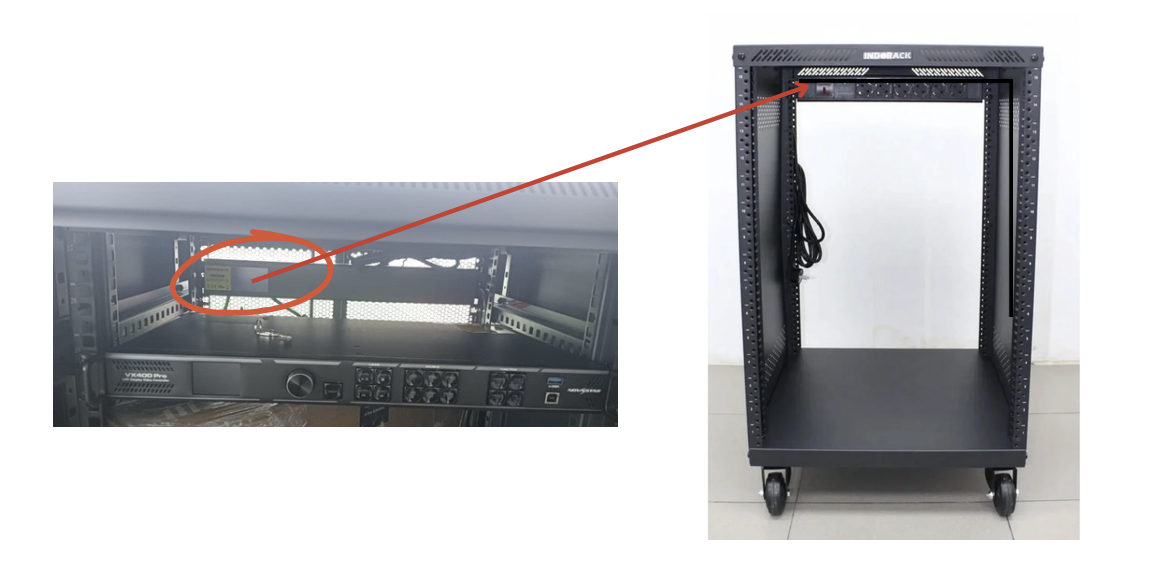
Press the rack-panel switch to turn the converter and processor ON.Tekan saklar pada panel rak agar converter dan processor berada dalam keadaan ON. - Turn on the video switcher. Press the ON button on the AVMATRIX unit.
Tekan tombol ON pada video switcher.
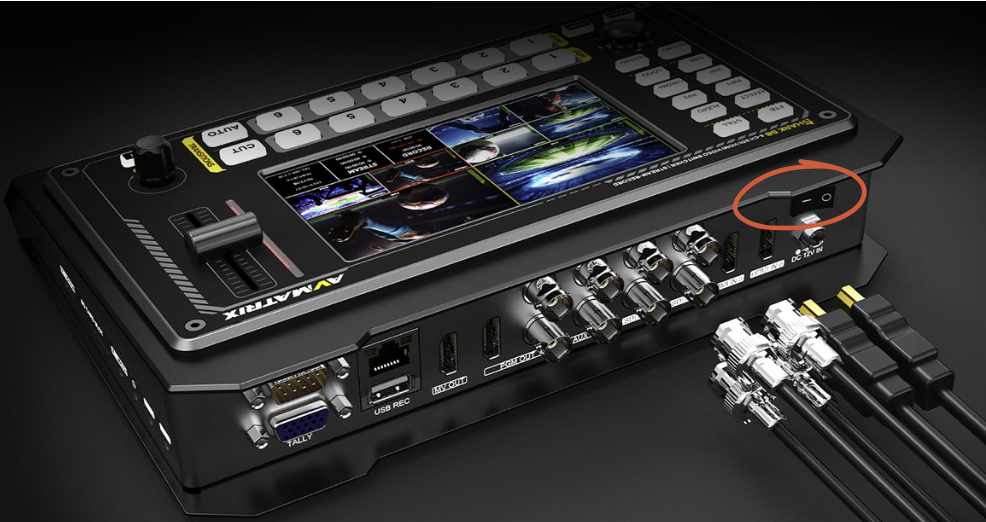
Press the ON button on the video switcher, then connect the HDMI cable to the PC and laptop.Tekan tombol "ON" pada video switcher dan sambungkan kabel HDMI ke PC dan Laptop. - Next, connect the HDMI cable to the PC. The laptop's data will then connect through the video chain.
Selanjutnya hubungkan kabel HDMI ke PC, setelah itu data yang ada di laptop akan terhubung.
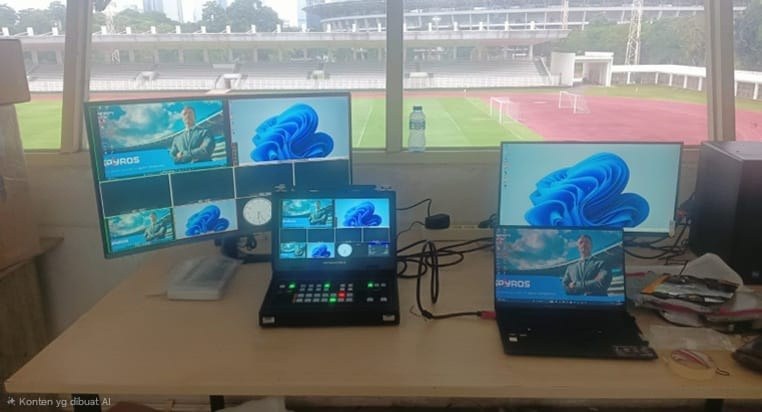
The operator desk with HDMI connections to the PC and laptop.Meja operator dengan koneksi HDMI ke PC dan laptop.
Adjusting screen brightness
Mengatur kecerahan layar
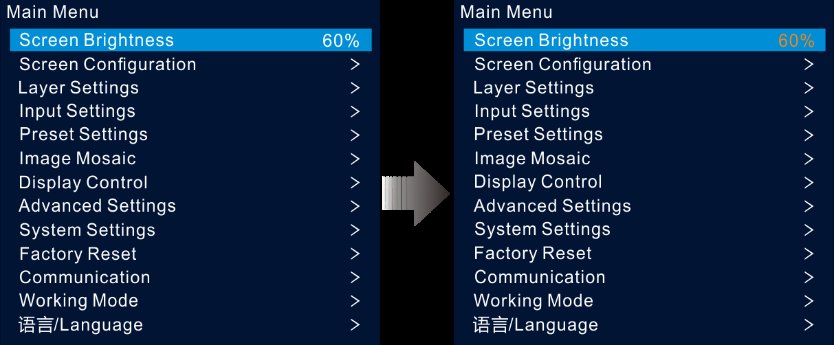
The steps below show how to adjust the screen brightness, or Brightness, on the Novastar VX400 Pro.
Berikut cara mengatur kecerahan layar / Brightness pada Novastar VX400 Pro.
- On the home screen, press the knob to open the main menu.
Pada layar utama, tekan knob untuk membuka menu utama.
- Select Screen Brightness, then press the knob to confirm.
Pilih Screen Brightness, lalu tekan knob untuk mengonfirmasi.
- Turn the knob to change the brightness. The LED screen updates as you adjust it. When the brightness looks right, press the knob to apply the setting.
Putar knob untuk mengubah kecerahan. Layar LED akan langsung berubah saat Anda menyesuaikannya. Setelah tingkatnya sesuai, tekan knob untuk menerapkan pengaturan.
Finding your way around
Menjelajahi Skoria
Open Skoria at https://skoria.ckreator.id on any staff device at the venue. The left sidebar contains Teams, Matches, and Display Control. Administrators also have Organization. Learn what each area is for before you create a fixture.
Buka Skoria di https://skoria.ckreator.id melalui perangkat staf mana pun di venue. Menu sisi kiri berisi Teams, Matches, dan Display Control. Administrator juga memiliki menu Organization. Pelajari fungsi setiap bagian sebelum membuat jadwal pertandingan.

- Use Teams to manage the clubs in your competition and their players. Set it up once, then reuse it for every fixture.
- Use Matches to create fixtures, build lineups when needed, and run the live console on match day.
- Display ControlKontrol Display is a top-level sidebar item for Organization administrators and Operators. Use it to manage each named Audience ScreenLayar Penonton, its public URL, presentation style, display size, and Standby message. It also contains the public Multiview URL.
- Organization contains MembersAnggota and Audit LogsLog Audit and is available only to administrators. Operators see Teams, Matches, and Display Control, but not Organization.
Gunakan Teams untuk mengelola klub dalam kompetisi dan para pemainnya. Setelah disiapkan, daftar ini dapat digunakan kembali untuk setiap pertandingan. Gunakan Matches untuk membuat jadwal, menyusun line-up bila diperlukan, dan menjalankan konsol langsung pada hari pertandingan. Display ControlKontrol Display adalah menu utama untuk Administrator organisasi dan Operator. Di sini Anda mengelola setiap Audience ScreenLayar Penonton, URL publik, gaya tampilan, ukuran layar, dan pesan Standby, serta URL publik Multiview. Organization berisi MembersAnggota dan Audit LogsLog Audit dan hanya tersedia untuk administrator. Operator melihat Teams, Matches, dan Display Control, tetapi tidak melihat Organization.
An organization can run several Live Matches at the same time. Each named Audience Screen can show one Live Match, and each Live Match can use one screen. New organizations start with four screens (Audience Screen, Audience Screen 2, Audience Screen 3, and Audience Screen 4). Open the same screen URL on multiple devices to mirror one match. Use different URLs to show different matches. Platform administrators can add, rename, or retire screens.
Satu organisasi dapat menjalankan beberapa pertandingan Live secara bersamaan. Setiap Audience Screen bernama dapat menampilkan satu pertandingan Live, dan setiap pertandingan Live dapat menggunakan satu layar. Organisasi baru memiliki empat layar (Audience Screen, Audience Screen 2, Audience Screen 3, dan Audience Screen 4). Buka URL layar yang sama di beberapa perangkat untuk menampilkan pertandingan yang sama. Gunakan URL berbeda untuk menampilkan pertandingan berbeda. Administrator platform dapat menambah, mengganti nama, atau menonaktifkan layar.
The top bar is the same on every page. The breadcrumb on the left shows where you are. On the right, User guidePanduan pengguna opens this guide in a new tab, and the EN / ID toggle changes the interface language. The badge beside it shows your venue or organization, here Super League Venue. Your account name, role, and account menu appear in the bottom-left corner.
Bilah atas sama di setiap halaman. Breadcrumb di sebelah kiri menunjukkan posisi Anda. Di sebelah kanan, User guidePanduan pengguna membuka panduan ini di tab baru, sedangkan tombol EN / ID mengganti bahasa antarmuka. Lencana di sampingnya menampilkan nama venue atau organisasi Anda, dalam contoh ini Super League Venue. Nama akun, peran, dan menu akun berada di pojok kiri bawah.
Signing in
Masuk ke akun

- Go to https://skoria.ckreator.id, then enter your Username and Password.
- Click the eye icon in the password field to check the password you entered.
Klik ikon mata pada kolom password untuk memeriksa kata sandi yang Anda masukkan.
- Select Sign in.
Pilih Sign in.
Members
Anggota
Organization administrators create the accounts used by match-day operators. Operators cannot open this page.
Administrator organisasi membuat akun yang digunakan operator pada hari pertandingan. Operator tidak dapat membuka halaman ini.

- In the sidebar, open Organization, then select MembersAnggota.
Dari menu samping, buka Organization, lalu pilih MembersAnggota.
- In Add memberTambah anggota, enter a UsernameNama pengguna, a PasswordKata sandi with at least 12 characters, and a RolePeran. Choose Operator for match-day console work. Choose Organization administratorAdministrator organisasi to manage Members, Audit Logs, and presentation settings.
Di Add memberTambah anggota, masukkan UsernameNama pengguna, PasswordKata sandi minimal 12 karakter, dan RolePeran. Pilih Operator untuk pekerjaan konsol pada hari pertandingan. Pilih Organization administratorAdministrator organisasi untuk mengelola Members, Audit Logs, dan pengaturan tampilan.
- Select Add memberTambah anggota, then give the new user their username and password. You cannot reset the password from this page later.
Pilih Add memberTambah anggota, lalu berikan username dan password kepada pengguna baru. Password tidak dapat diatur ulang dari halaman ini.
- The Members table lists every account. Change the Role from its dropdown. Use the row action to DisableNonaktifkan or EnableAktifkan an account. A disabled account cannot sign in.
Tabel Members menampilkan semua akun. Ubah Role dari dropdown. Gunakan tindakan pada baris untuk DisableNonaktifkan atau EnableAktifkan akun. Akun yang dinonaktifkan tidak dapat masuk.
Teams & players
Tim & pemain
Register your teams before creating a fixture. Once they are set up, you will usually only need to update them when something changes.
Daftarkan tim sebelum membuat jadwal pertandingan. Setelah disiapkan, Anda biasanya hanya perlu memperbaruinya jika ada perubahan.

- Open Teams from the sidebar. Use Search teams… to find a club, or select Create team to add one.
Buka Teams dari menu samping. Gunakan Search teams… untuk mencari klub, atau pilih Create team untuk menambahkannya.
- When you create or edit a team, you can upload a Logo (optional)Logo (opsional) in JPEG, PNG, or WebP format. When editing, leave this field empty to keep the current crest. The logo appears in the team list, lineup, and Audience Screen.
Saat membuat atau mengedit tim, Anda dapat mengunggah Logo (optional)Logo (opsional) dalam format JPEG, PNG, atau WebP. Saat mengedit, kosongkan kolom ini untuk mempertahankan logo saat ini. Logo akan tampil di daftar tim, susunan pemain, dan Audience Screen.
- Select the pencil icon to edit a team's details. Select the archive icon to remove the team from active use without deleting its history. Archived teams move to the Archived tab and no longer appear when you create a fixture.
Pilih ikon pensil untuk mengedit detail tim. Pilih ikon arsip untuk menghapus tim dari penggunaan aktif tanpa menghapus riwayatnya. Tim yang diarsipkan berpindah ke tab Archived dan tidak lagi muncul saat membuat jadwal pertandingan.
- Select a team's name to open its player roster.
Pilih nama tim untuk membuka daftar pemainnya.

On a team's page, search for players, add new players, or edit and archive existing ones. Each player has a shirt number, a Position such as Goalkeeper, Centre-back, or Central Midfielder, and an optional photo. Skoria uses this roster for the starting XI, so check every number and position before you set the lineup.
Di halaman tim, cari pemain, tambahkan pemain baru, atau edit dan arsipkan pemain yang sudah ada. Setiap pemain memiliki nomor punggung, Position seperti Goalkeeper, Centre-back, atau Central Midfielder, dan foto opsional. Skoria menggunakan daftar ini untuk starting XI, jadi periksa semua nomor dan posisi sebelum menyusun line-up.
Screen & branding
Layar & merek
Configure Display Control for the venue before match day. Each named Audience Screen has its own public URL, and its style and size apply to every match shown there until you change them. One Multiview URL can combine up to four screens.
Konfigurasikan Display Control untuk venue sebelum hari pertandingan. Setiap Audience Screen bernama memiliki URL publik sendiri. Gaya dan ukurannya berlaku untuk semua pertandingan yang ditampilkan di sana sampai Anda mengubahnya. Satu URL Multiview dapat menggabungkan hingga empat layar.
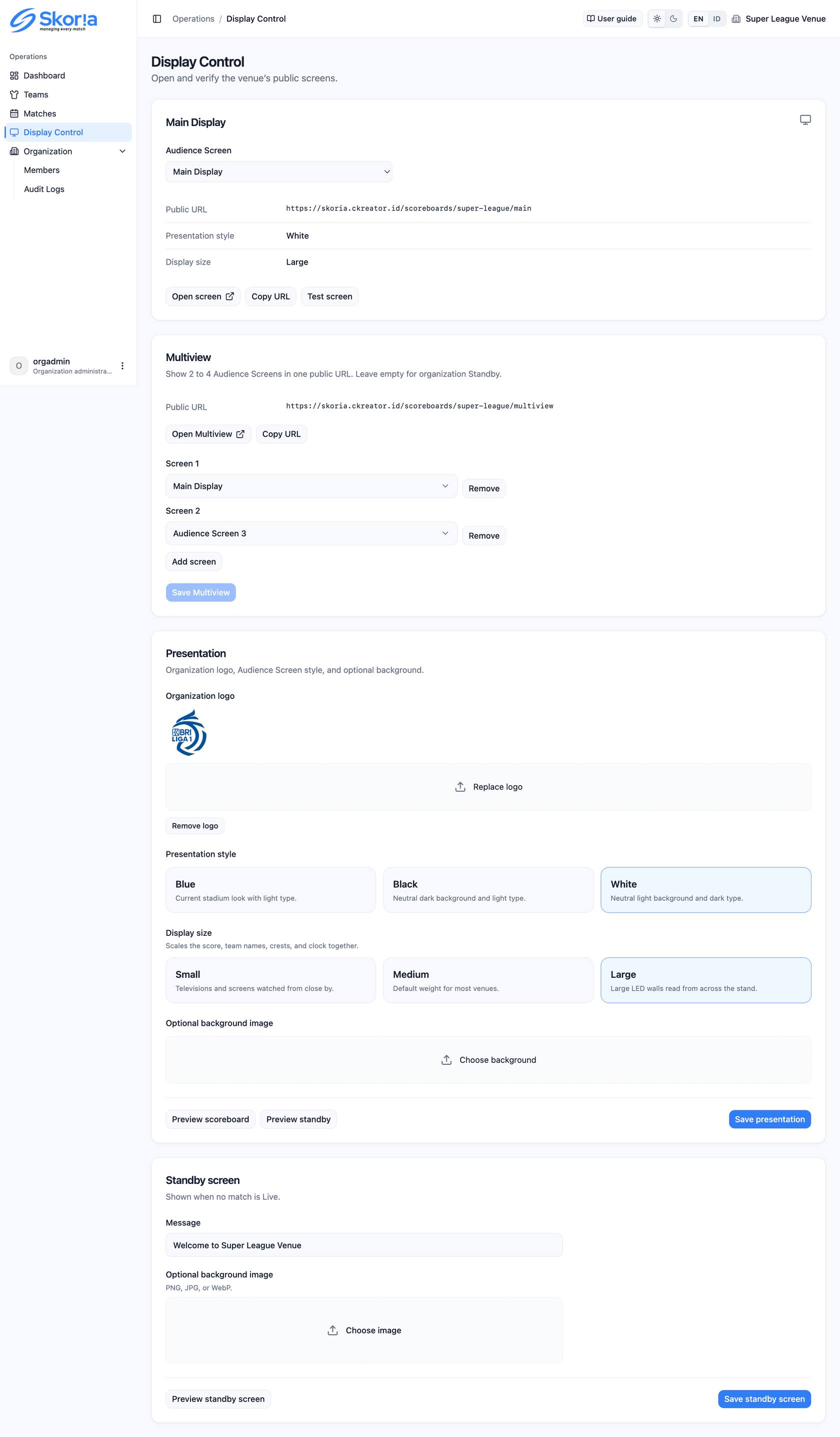
- Open Display ControlKontrol Display from the sidebar. It is a top-level item for Organization administrators and Operators, not a page under Organization. If the venue has more than one screen, choose an Audience ScreenLayar Penonton from the selector first. The top card shows the screen's public URL and the Open screenTampilkan Layar, Copy URLSalin URL, and Test screenUji layar actions.
Buka Display ControlKontrol Display dari menu samping. Menu ini berada di tingkat utama untuk Administrator organisasi dan Operator, bukan lagi di bawah Organization. Jika venue memiliki lebih dari satu layar, pilih Audience ScreenLayar Penonton dari pemilih layar terlebih dahulu. Kartu atas menampilkan URL publik layar tersebut serta tindakan Open screen, Copy URL, dan Test screen.
- In the PresentationTampilan card, upload or replace the organization logo. Choose a Presentation styleGaya Tampilan of BlueBiru, BlackHitam, or WhitePutih. You can also upload a background image to replace the preset backdrop. Select Save presentationSimpan tampilan to save the changes.
Di kartu PresentationTampilan, unggah atau ganti logo organisasi. Pilih Presentation styleGaya Tampilan berupa BlueBiru, BlackHitam, atau WhitePutih. Anda juga dapat mengunggah gambar latar untuk menggantikan latar bawaan. Pilih Save presentationSimpan tampilan untuk menyimpan perubahan.
- Set Display sizeUkuran Tampilan to SmallKecil, MediumSedang, or LargeBesar. This scales the score, names, crests, and clock together. Choose Large when the LED wall is viewed from across the stand.
Atur Display sizeUkuran Tampilan ke SmallKecil, MediumSedang, atau LargeBesar. Pengaturan ini mengubah ukuran skor, nama, logo, dan jam secara bersamaan. Pilih Large jika dinding LED dilihat dari seberang tribun.
- In Standby screenLayar Standby, set the screen's welcome message and optional background. Select Save standby screenSimpan layar siaga to save them. When you complete a match on that screen, it returns to this Standby view. Skoria will not automatically show another Live Match.
Di Standby screenLayar Standby, atur pesan sambutan dan latar opsional untuk layar tersebut. Pilih Save standby screenSimpan layar siaga untuk menyimpannya. Setelah pertandingan di layar itu selesai, layar kembali ke tampilan Standby ini. Skoria tidak akan menampilkan pertandingan Live lain secara otomatis.
Multiview, one URL for 2 to 4 screens
Multiview, satu URL untuk 2 sampai 4 layar
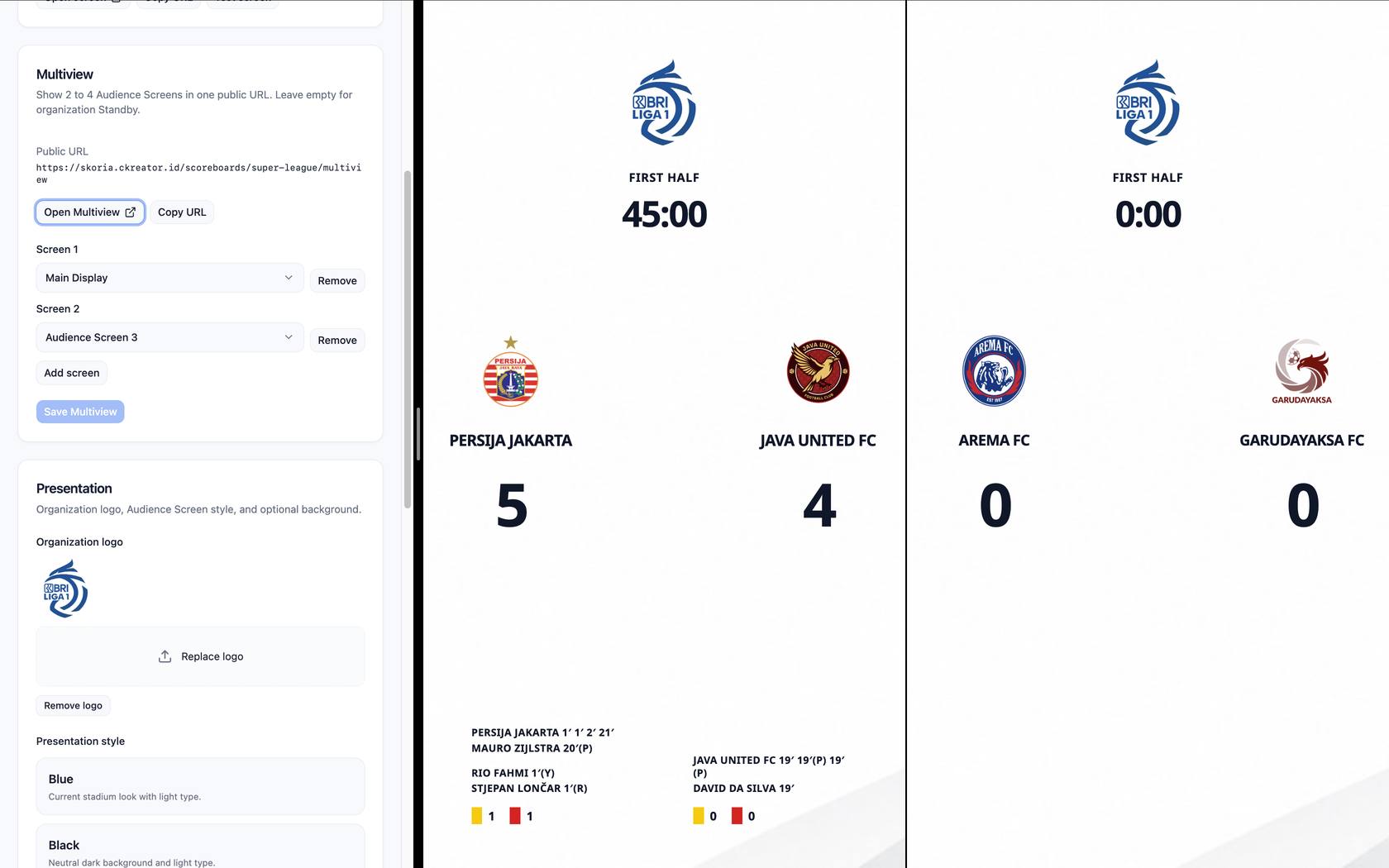
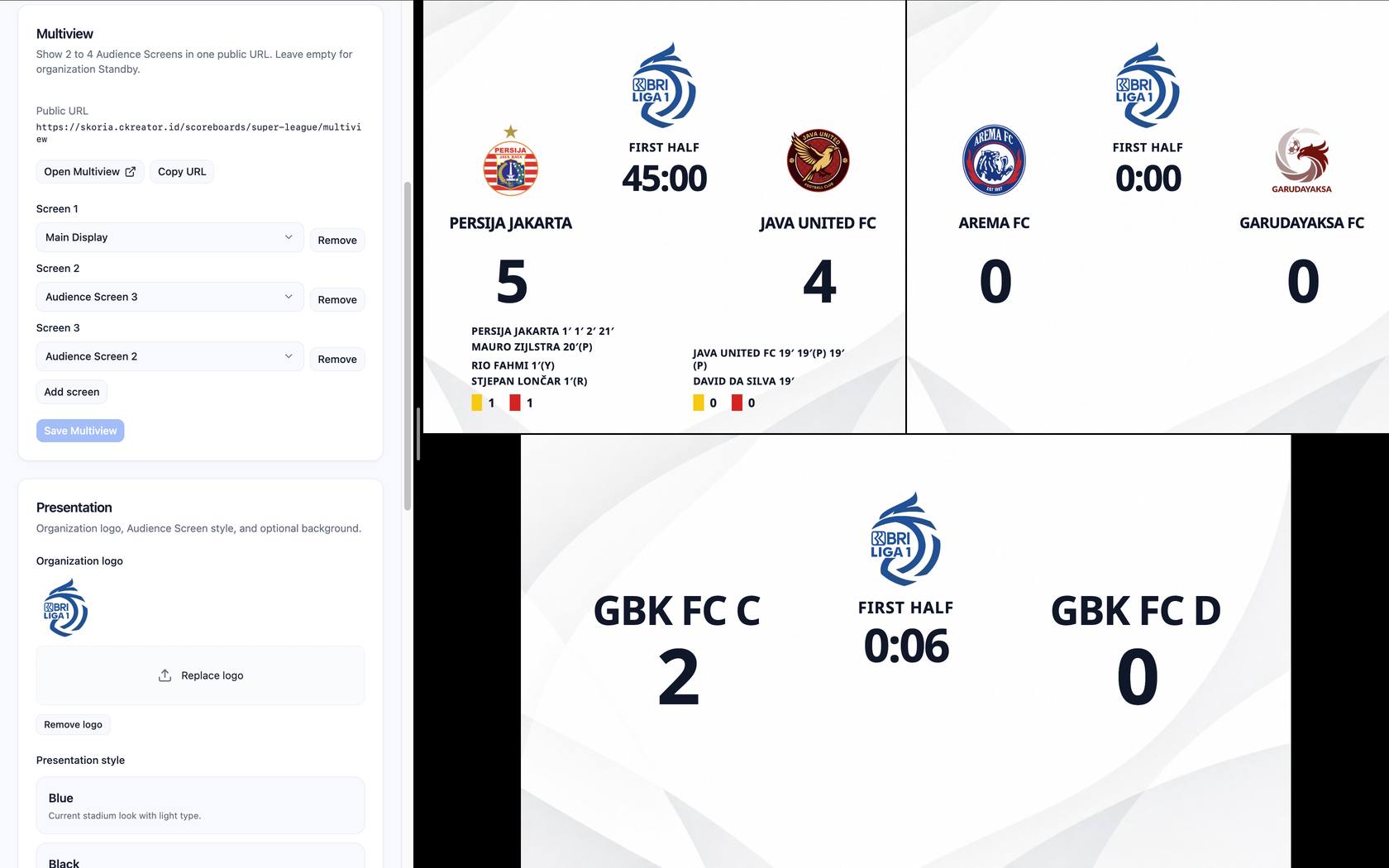
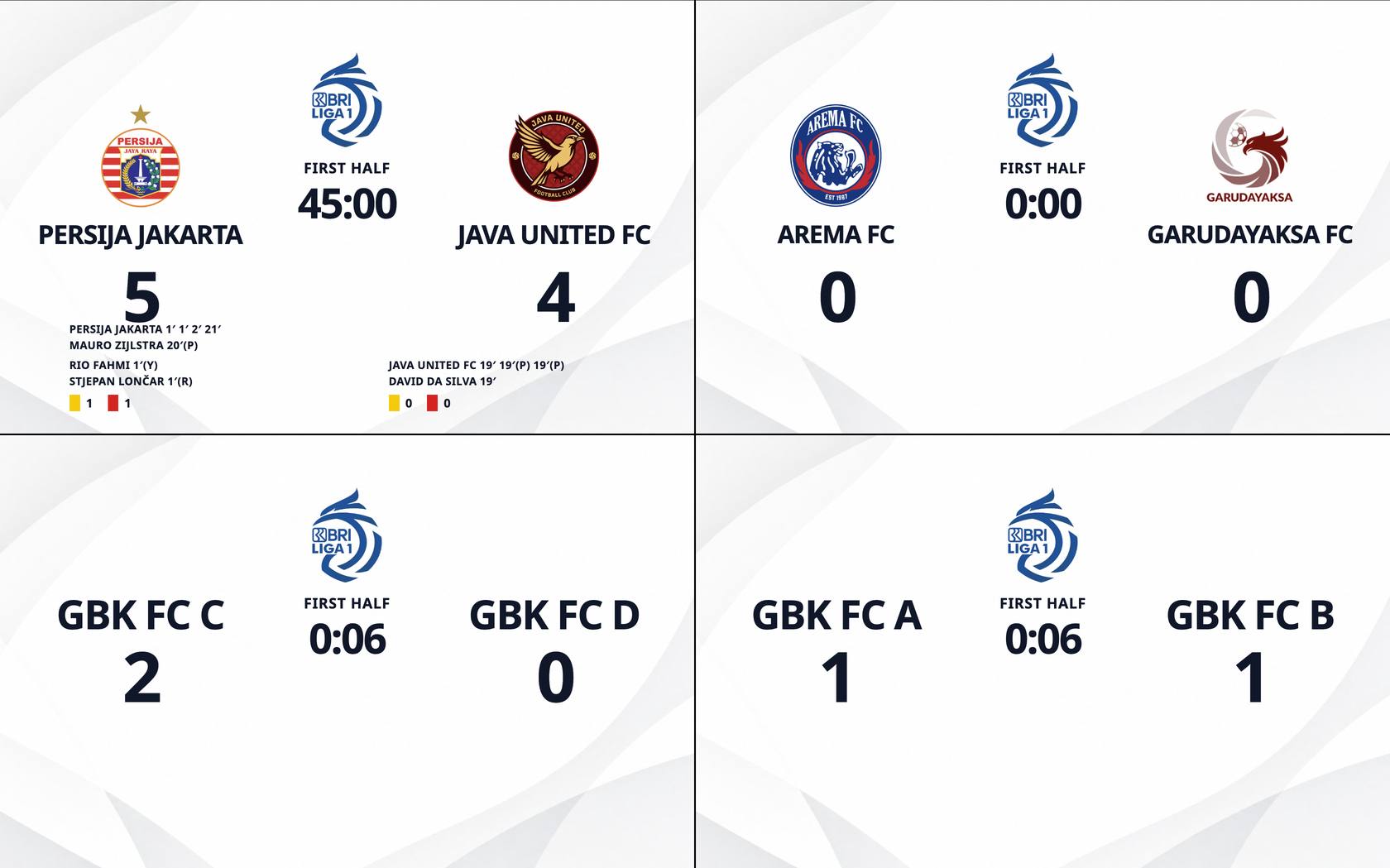
Use the public page at /scoreboards/{organizationSlug}/multiview to combine 2 to 4 existing Audience Screens. Two screens appear side by side. Three screens use two panes on top and one wide pane below. Four screens use a 2x2 grid. Each pane mirrors the content of its Audience Screen. If fewer than two valid screens are staged, the page shows the organization's Standby. Multiview is not an Audience Screen, so do not use multiview as a screen name.
Gunakan halaman publik di /scoreboards/{organizationSlug}/multiview untuk menggabungkan 2 sampai 4 Audience Screen yang sudah ada. Dua layar tampil berdampingan. Tiga layar memakai dua panel di atas dan satu panel lebar di bawah. Empat layar memakai grid 2x2. Setiap panel menampilkan isi Audience Screen yang bersangkutan. Jika kurang dari dua layar valid yang disiapkan, halaman menampilkan Standby organisasi. Multiview bukan Audience Screen, jadi jangan gunakan multiview sebagai nama layar.
- In Display ControlKontrol Display, find the Multiview card. It shows the public Multiview URL and the Open MultiviewBuka Multiview and Copy URLSalin URL actions.
Di Display ControlKontrol Display, cari kartu Multiview. Kartu ini menampilkan URL publik Multiview serta tindakan Open MultiviewBuka Multiview dan Copy URLSalin URL.
- Select Add screenTambah layar to build the mix in order. Choose one Audience Screen in each Screen 1 through Screen 4 row. A screen can appear only once. Select Save MultiviewSimpan Multiview when you are done. Saving 2 to 4 different screens publishes the mix to connected Multiview viewers immediately. Saving an empty mix returns Multiview to the organization Standby.
Pilih Add screenTambah layar untuk menyusun campuran secara berurutan. Pilih satu Audience Screen pada setiap baris Screen 1 sampai Screen 4. Satu layar hanya boleh dipilih sekali. Setelah selesai, pilih Save MultiviewSimpan Multiview. Menyimpan 2 sampai 4 layar berbeda langsung menerbitkan campuran kepada penonton Multiview yang terhubung. Menyimpan campuran kosong mengembalikan Multiview ke Standby organisasi.
- If you stage only one screen, Skoria asks you to Save 2 to 4 screens, or remove the last one to return to StandbySimpan 2 sampai 4 layar, atau hapus yang terakhir untuk kembali ke Standby. Both Organization administrators and Operators can stage and save a mix.
Jika Anda hanya menyiapkan satu layar, Skoria meminta Anda memilih Save 2 to 4 screens, or remove the last one to return to StandbySimpan 2 sampai 4 layar, atau hapus yang terakhir untuk kembali ke Standby. Administrator organisasi dan Operator dapat menyusun serta menyimpan campuran.
Creating a fixture
Membuat jadwal pertandingan
When you create a match, Skoria opens Match Review. Check the two teams, then either select Go Live or continue to the lineup.
Saat membuat pertandingan, Skoria membuka Match Review. Periksa kedua tim, lalu pilih Go Live atau lanjutkan ke susunan pemain.
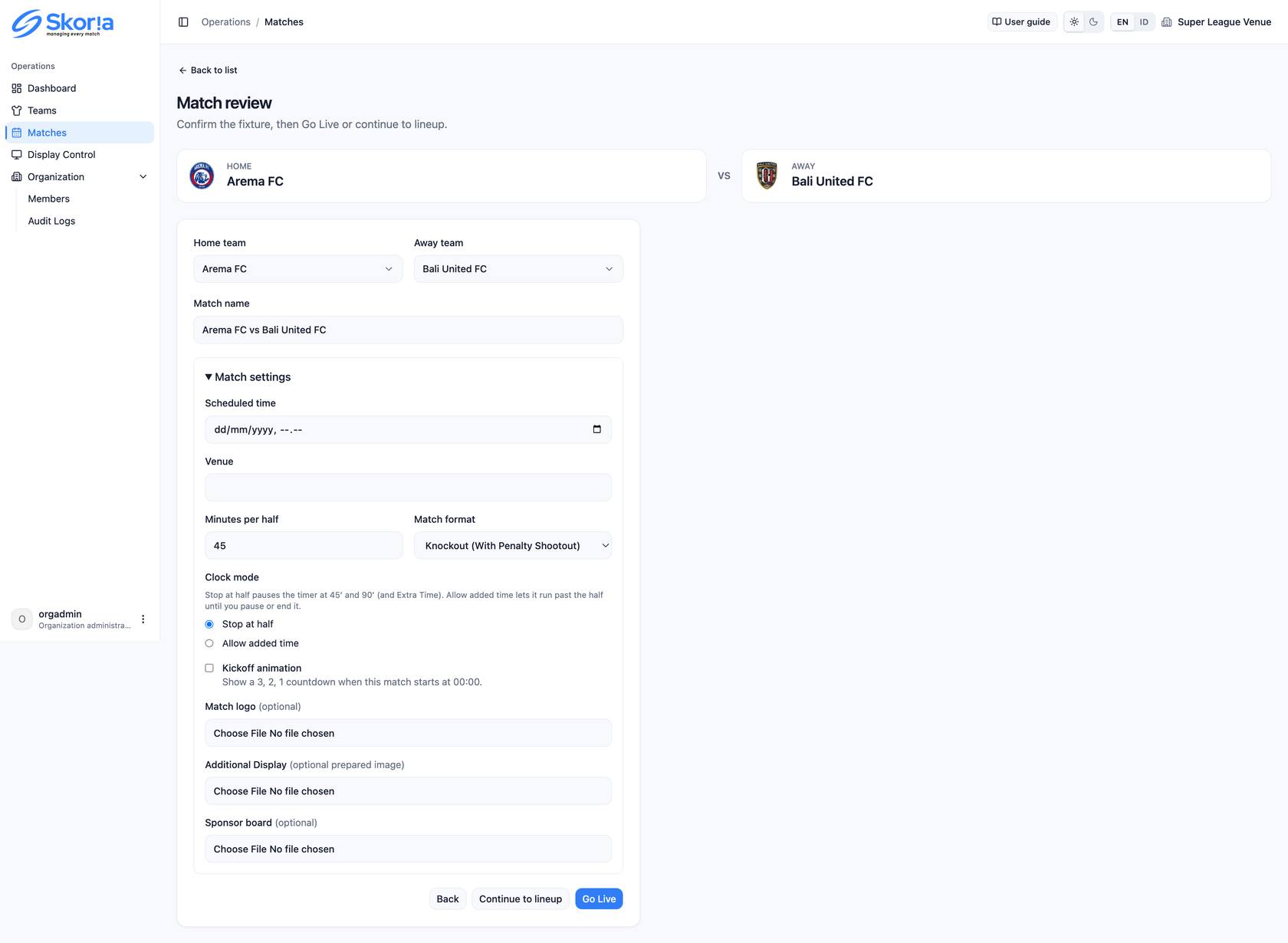
- In Matches, choose the Home team and Away team from your Teams list. Skoria fills in Match name as Team A vs Team B. Edit it if you want to use a round number, cup name, or another label. The two teams are enough to create the fixture. Select Next to create the Draft. Configure everything else on the Match Review screen.
Di Matches, pilih Home team dan Away team dari daftar Teams. Skoria mengisi Match name dengan Team A vs Team B. Ubah jika ingin menggunakan nomor ronde, nama turnamen, atau label lain. Kedua tim sudah cukup untuk membuat jadwal. Pilih Next untuk membuat Draft, lalu atur hal lainnya di layar Match Review.
- Open Match settingsPengaturan pertandingan to set the Scheduled time, Venue, Minutes per half (45 by default), Clock modeMode jam, Match format, and Kickoff animationAnimasi kickoff. New matches use Knockout (With Penalty Shootout)Gugur (Dengan Adu Penalti) and Stop at halfBerhenti di akhir babak by default. In this mode, the clock stops at 45' and 90', and at the Extra Time targets, until you end the half. Choose Allow added timeIzinkan injury time only when the clock should continue past the target until you pause or end the half. Kickoff animation is off by default. Turn it on to show the six-second 3, 2, 1, KICKOFF countdown the first time you start from 00:00.
Buka Match settingsPengaturan pertandingan untuk mengatur Scheduled time, Venue, Minutes per half (bawaan 45), Clock modeMode jam, Match format, dan Kickoff animationAnimasi kickoff. Pertandingan baru menggunakan Knockout (With Penalty Shootout)Gugur (Dengan Adu Penalti) dan Stop at halfBerhenti di akhir babak secara bawaan. Dalam mode ini, jam berhenti pada 45' dan 90', serta pada target Extra Time, sampai Anda mengakhiri babak. Pilih Allow added timeIzinkan injury time hanya jika jam harus terus berjalan melewati target sampai Anda menjeda atau mengakhiri babak. Animasi kickoff nonaktif secara bawaan. Aktifkan untuk menampilkan hitung mundur enam detik 3, 2, 1, KICKOFF saat pertama kali memulai dari 00:00.
- You can also add a Match logo, a prepared Additional Display image, and up to three Sponsor slots with an optional Sponsor label (shown as "Presented by"). Add or replace any of these later from the live console. An automatically generated Home vs Away name stays off the Scoreboard, but a custom match name appears.
Anda juga dapat menambahkan Match logo, gambar Additional Display yang sudah disiapkan, dan hingga tiga Sponsor slots dengan Sponsor label opsional (ditampilkan sebagai "Presented by"). Semuanya dapat ditambahkan atau diganti nanti dari konsol langsung. Nama Home vs Away yang dibuat otomatis tidak tampil di Scoreboard, tetapi nama pertandingan kustom akan tampil.
- Select Go Live to freeze the current roster, choose a named Audience Screen, and open the console. An empty roster is valid. If you want to set a Starting XI first, select Continue to lineupLanjut ke susunan pemain instead. Standby is never a Go Live destination.
Pilih Go Live untuk membekukan daftar pemain saat ini, memilih Audience Screen bernama, dan membuka konsol. Daftar pemain boleh kosong. Jika ingin menyusun Starting XI terlebih dahulu, pilih Continue to lineupLanjut ke susunan pemain. Standby bukan tujuan Go Live.
The advanced fields are optional. If you leave them blank, you can add the media from the console after the match goes Live.
Kolom lanjutan bersifat opsional. Jika dibiarkan kosong, media dapat ditambahkan melalui konsol setelah pertandingan menjadi Live.
Setting the lineup
Menyusun line-up
The lineup is optional. Use it when you want to show a Starting XI on the Audience Screen. You can still select Go Live with an empty roster or no starters.
Line-up bersifat opsional. Gunakan jika ingin menampilkan Starting XI di Audience Screen. Anda tetap dapat memilih Go Live dengan daftar pemain kosong atau tanpa starter.

- Use the two tabs at the top to switch between Home and Away. Each tab shows a running count, such as 11 starters.
Gunakan dua tab di bagian atas untuk beralih antara Home dan Away. Setiap tab menampilkan jumlah sementara, seperti 11 starters.
- Choose a FormationFormasi from the catalog. Formations are grouped by the back line, with four, three, or five defenders. Presets include 4-3-3, 4-2-3-1, 4-4-2, 3-5-2, 5-3-2, and others. Drag players from the squad list to a position on the pitch, or select a position and then select a player. Each pitch marker shows the player's photo and shirt number, or the shirt symbol when no photo is available. Select Auto fillIsi otomatis to create a starting XI that you can adjust. Slots may remain empty.
Pilih FormationFormasi dari katalog. Formasi dikelompokkan berdasarkan jumlah pemain di lini belakang, yaitu empat, tiga, atau lima bek. Presetnya mencakup 4-3-3, 4-2-3-1, 4-4-2, 3-5-2, 5-3-2, dan lainnya. Seret pemain dari daftar skuad ke posisi di lapangan, atau pilih posisi lalu pilih pemain. Setiap penanda lapangan menampilkan foto dan nomor punggung pemain, atau simbol kaus jika tidak ada foto. Pilih Auto fillIsi otomatis untuk membuat starting XI yang dapat Anda sesuaikan. Slot boleh dibiarkan kosong.
- In the squad panel, use Search players or the GK, DEF, MID, and FWD filters to narrow the list. A selected player gets a Starter badge and checkmark. Expand Substitutes to manage the bench. Skoria also shows the selected squad count, such as 16/27.
Di panel skuad, gunakan Search players atau filter GK, DEF, MID, dan FWD untuk mempersempit daftar. Pemain yang dipilih mendapat lencana Starter dan tanda centang. Buka Substitutes untuk mengatur bangku cadangan. Skoria juga menampilkan jumlah skuad yang dipilih, seperti 16/27.
- Switch between Pitch viewTampilan lapangan and Lineup imageGambar susunan pemain to choose the board. On the Audience Screen, the starters appear by line, from goalkeeper through forwards, over about five seconds. The complete board then remains on screen. The console shows the completed board immediately. An uploaded lineup image uses a simple fade instead.
Beralih antara Pitch viewTampilan lapangan dan Lineup imageGambar susunan pemain untuk memilih papan. Di Audience Screen, starter muncul per lini, dari kiper hingga penyerang, selama sekitar lima detik. Setelah itu, papan lengkap tetap ditampilkan. Konsol langsung menampilkan papan yang sudah lengkap. Gambar line-up yang diunggah menggunakan fade sederhana.
- Tick Save starters and substitutes for future matchesSimpan starter dan cadangan untuk pertandingan berikutnya for the Home side, the Away side, or both. Then select Save progress or Go Live. Skoria will use those players as starters the next time the team plays, while the remaining players stay on the roster as substitutes. This option does not save formation positions.
Centang Save starters and substitutes for future matchesSimpan starter dan cadangan untuk pertandingan berikutnya untuk sisi Home, Away, atau keduanya. Lalu pilih Save progress atau Go Live. Skoria akan menggunakan pemain tersebut sebagai starter pada pertandingan berikutnya, sedangkan pemain lain tetap berada di roster sebagai cadangan. Pilihan ini tidak menyimpan posisi formasi.
- Each side also has a Coach nameNama pelatih field. It is filled from the team's saved coach name and appears on the lineup board under the Coach label.
Setiap sisi juga memiliki kolom Coach nameNama pelatih. Kolom ini terisi dari nama pelatih yang tersimpan di tim dan tampil di papan line-up di bawah label Coach.
Use one of the three buttons at the bottom of the screen. Back to Match ReviewKembali ke Tinjauan Pertandingan returns to the review. Save progressSimpan progres keeps the draft without putting anything on air. Go Live freezes the snapshot and opens the console.
Gunakan salah satu dari tiga tombol di bagian bawah layar. Back to Match ReviewKembali ke Tinjauan Pertandingan kembali ke halaman review. Save progressSimpan progres menyimpan draf tanpa menayangkan apa pun. Go Live membekukan snapshot dan membuka konsol.
Running the live console
Menjalankan konsol langsung
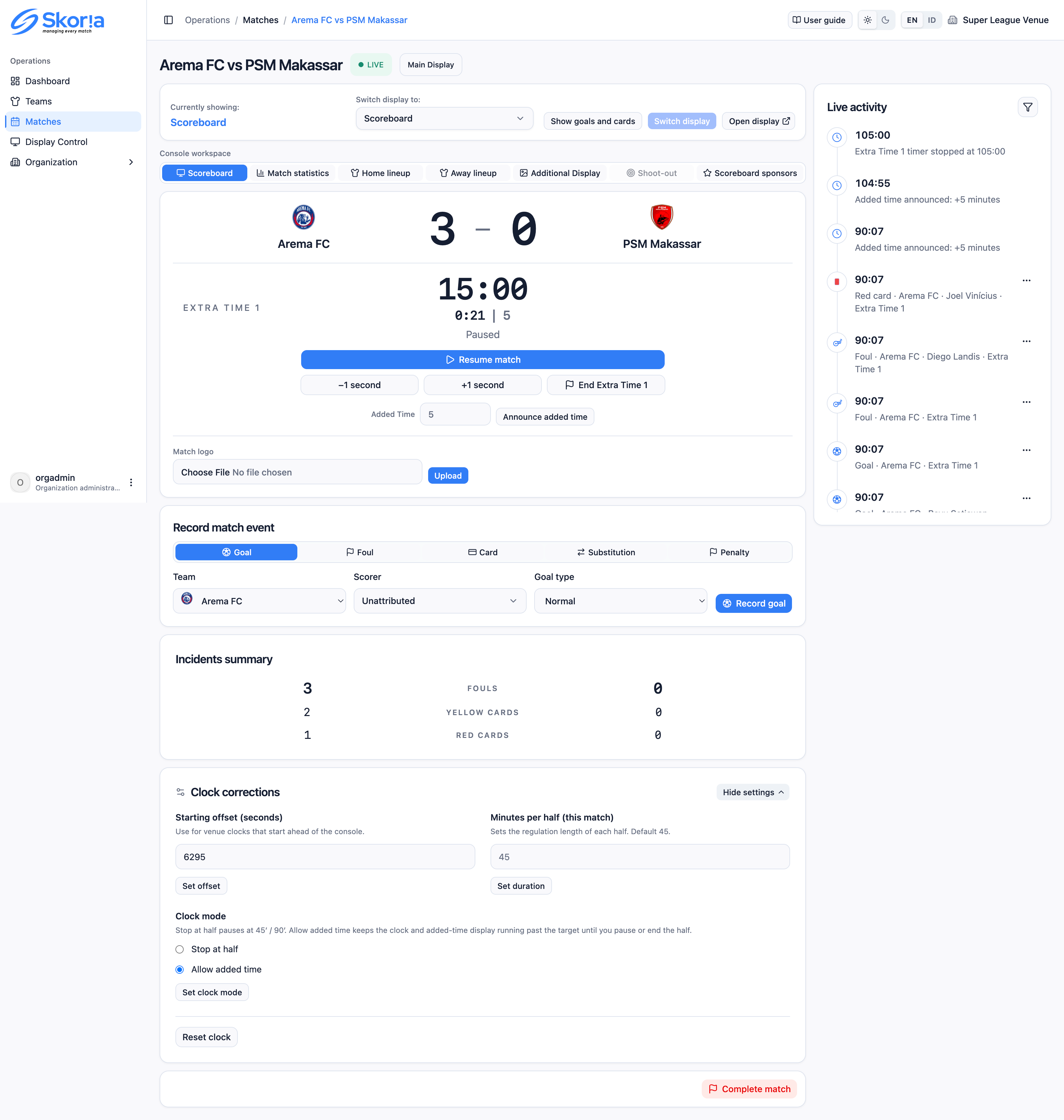
Once a match is Live, use this console to run it. It contains the match clock, event controls, and a feed of everything already recorded.
Setelah pertandingan menjadi Live, gunakan konsol ini untuk menjalankannya. Di sini terdapat jam pertandingan, kontrol kejadian, dan feed yang berisi semua catatan yang sudah dibuat.

Scoreboard workspace
Ruang kerja papan skor
The ScoreboardPapan skor tab is the console's default workspace. It contains the display bar, clock, Record match eventCatat peristiwa pertandingan, and Live activityAktivitas langsung. Changing the workspace tab changes only your console view. The Audience Screen does not change until you confirm Switch displayGanti tampilan.
Tab ScoreboardPapan skor adalah ruang kerja utama konsol. Tab ini berisi bilah tampilan, jam, Record match eventCatat peristiwa pertandingan, dan Live activityAktivitas langsung. Mengganti tab ruang kerja hanya mengubah tampilan di konsol Anda. Audience Screen tidak berubah sampai Anda mengonfirmasi Switch displayGanti tampilan.
| Control | Does this | Fungsinya |
|---|---|---|
| Currently showing | Shows the current mode on this match's assigned Audience Screen, including the screen name. If the match has no screen, it names the match currently using that screen instead. Use Show on ScreenTampilkan di Layar in the header to claim a screen. | Menampilkan mode yang sedang tampil di Audience Screen pertandingan ini, termasuk nama layarnya. Jika pertandingan ini tidak memiliki layar, kolom ini menampilkan pertandingan yang sedang menggunakan layar tersebut. Gunakan Show on ScreenTampilkan di Layar di header untuk mengambil alih layar pilihan. |
| Switch display to + Switch display | Choose the next Audience Screen mode, then confirm it with Switch display. A disabled mode needs a lineup, image, or shoot-out stage first. | Pilih mode Audience Screen berikutnya, lalu konfirmasi dengan Switch display. Mode yang nonaktif harus memiliki line-up, gambar, atau tahap adu penalti terlebih dahulu. |
| Show goals and cards | Works only while Scoreboard is on screen. It shows or hides scorer names and yellow and red card totals on the board. It does not replay an overlay. | Hanya berfungsi saat Scoreboard tampil di layar. Menampilkan atau menyembunyikan nama pencetak gol dan jumlah kartu kuning serta merah di papan. Tidak memutar ulang overlay. |
| Dismiss presentation | Appears while a kickoff or event overlay is playing. Select it to clear the overlay from connected screens. | Muncul saat overlay kickoff atau kejadian sedang diputar. Pilih untuk menutup overlay dari layar yang terhubung. |
| Open display | Opens the public Audience Screen in a new window for a projector or stream. | Membuka Audience Screen publik di jendela baru untuk proyektor atau siaran. |
| Console workspace tabs | The tabs are Scoreboard, Match statistics, Home lineup, Away lineup, Additional Display, Shoot-out, and Scoreboard sponsors. Lineup and shoot-out tabs remain disabled until those modes are available. | Tabnya adalah Scoreboard, Match statistics, Home lineup, Away lineup, Additional Display, Shoot-out, dan Scoreboard sponsors. Tab line-up dan adu penalti tetap nonaktif sampai mode tersebut tersedia. |
The clock
Jam pertandingan
- Select Start matchMulai pertandingan to start the first-half clock at 00:00. Kickoff animation is off by default. Enable it in Match settings to play 3, 2, 1, KICKOFF once on the Audience Screen. Resuming, starting a later period, resetting, or reconnecting will not play it again. The clock always shows minutes and seconds, so 90 minutes appears as 90:00, not 1:30:00.
Pilih Start matchMulai pertandingan untuk memulai jam babak pertama pada 00:00. Animasi kickoff nonaktif secara bawaan. Aktifkan di Match settings agar Audience Screen memutar 3, 2, 1, KICKOFF satu kali. Melanjutkan, memulai periode berikutnya, mereset, atau menyambungkan ulang tidak akan memutarnya lagi. Jam selalu menampilkan menit dan detik, sehingga 90 menit tampil sebagai 90:00, bukan 1:30:00.
- The default clock mode is Stop at halfBerhenti di akhir babak. It stops at the period target, 45' or 90', and at the 15-minute Extra Time target for each period. It then shows "This half has reached its time." End the half when the referee is ready. Choose Allow added timeIzinkan injury time in Match settings, or in Clock correctionsKoreksi jam, when the clock must continue past the target, for example to 45:01 or 48:12. If the console is one or two seconds ahead of or behind the referee, use -1 second or +1 second-1 / +1 detik to correct it.
Mode jam bawaan adalah Stop at halfBerhenti di akhir babak. Jam berhenti pada target babak, yaitu 45' atau 90', serta target Extra Time 15 menit per periode. Setelah itu, jam menampilkan "This half has reached its time." Akhiri babak saat wasit siap. Pilih Allow added timeIzinkan injury time di Match settings atau Clock correctionsKoreksi jam jika jam harus terus berjalan melewati target, misalnya hingga 45:01 atau 48:12. Jika jam konsol maju atau tertinggal satu atau dua detik dari wasit, gunakan -1 second atau +1 second-1 / +1 detik untuk memperbaikinya.
- Once the clock is running, the main button becomes Pause matchJeda pertandingan. Use Resume matchLanjutkan pertandingan when play restarts after a stoppage. Select End first halfAkhiri babak pertama when the referee ends the period. Later, use End second halfAkhiri babak kedua and then the Extra Time controls. The display stays on the ended period until you start the next one.
Setelah jam berjalan, tombol utama menjadi Pause matchJeda pertandingan. Gunakan Resume matchLanjutkan pertandingan saat permainan dimulai kembali setelah berhenti. Pilih End first halfAkhiri babak pertama saat wasit mengakhiri periode. Setelah itu, gunakan End second halfAkhiri babak kedua dan kontrol Extra Time. Tampilan tetap pada periode yang berakhir sampai Anda memulai periode berikutnya.
- The next half uses the previous regulation target. The second half starts at 45:00. Each Extra Time period starts at zero. Extra Time 1 runs from 0:00 to 15:00, and Extra Time 2 starts again at 0:00. In knockout matches, Start Extra TimeMulai Perpanjangan Waktu and later Start shoot-outMulai adu penalti appear when those stages become available.
Periode berikutnya menggunakan target regulasi sebelumnya. Babak kedua dimulai pada 45:00. Setiap periode Extra Time dimulai dari nol. Extra Time 1 berjalan dari 0:00 hingga 15:00, sedangkan Extra Time 2 dimulai lagi dari 0:00. Dalam pertandingan knockout, Start Extra TimeMulai Perpanjangan Waktu lalu Start shoot-outMulai adu penalti muncul saat tahap tersebut tersedia.
When Allow added time is on, an Added TimeWaktu Tambahan form appears below the clock controls. Enter the referee's announcement in minutes, then select Announce added timeUmumkan waktu tambahan. The Audience Screen shows a smaller Added Time counter beside the main clock. The main clock stays at the period target while the counter measures the overflow, and the announced +minutes′ value appears beside it. The counter remains visible during half-time until the next period starts.
Saat Allow added time aktif, formulir Added TimeWaktu Tambahan muncul di bawah kontrol jam. Masukkan pengumuman wasit dalam menit, lalu pilih Announce added timeUmumkan waktu tambahan. Audience Screen menampilkan penghitung Added Time yang lebih kecil di samping jam utama. Jam utama tetap pada target periode, sedangkan penghitung menunjukkan waktu yang melewati target dan angka +menit′ yang diumumkan tampil di sebelahnya. Penghitung tetap terlihat selama waktu istirahat hingga periode berikutnya dimulai.
Below the clock, use Match logoLogo pertandingan to upload, replace, or remove the competition mark in the centre of the display while the match is Live.
Di bawah jam, gunakan Match logoLogo pertandingan untuk mengunggah, mengganti, atau menghapus logo kompetisi di tengah tampilan saat pertandingan Live.
Record match event
Catat peristiwa pertandingan
This panel appears only in the Scoreboard workspace. During a shoot-out, it is replaced by a note, and you record kicks in the Shoot-out workspace. When you submit an event, Skoria adds it to Live activity, updates the totals, and usually plays a ten-second overlay on the Audience Screen. Penalty awards do not play an overlay. Dismiss presentationTutup presentasi appears in the display bar while an overlay is playing.
Panel ini hanya muncul di ruang kerja Scoreboard. Saat adu penalti, panel digantikan oleh catatan dan tendangan dicatat di ruang kerja Shoot-out. Saat Anda mengirim kejadian, Skoria menambahkannya ke Live activity, memperbarui total, dan biasanya memutar overlay sepuluh detik di Audience Screen. Penalti yang diberikan tidak memutar overlay. Dismiss presentationTutup presentasi muncul di bilah tampilan saat overlay sedang diputar.
GoalGol
- Choose Team, the side that scored.
Pilih Team, yaitu sisi yang mencetak gol.
- Choose Scorer. Select a player from the scoring side, a player from the opposing side for an own goal, or UnattributedTanpa atribusi.
Pilih Scorer. Pilih pemain dari sisi yang mencetak gol, pemain lawan untuk gol bunuh diri, atau UnattributedTanpa atribusi.
- Set Goal type to Normal, Penalty, or Own goalGol bunuh diri. If the scorer does not match the new type, Skoria clears the scorer.
Atur Goal type ke Normal, Penalty, atau Own goalGol bunuh diri. Jika pencetak gol tidak sesuai dengan jenis baru, Skoria akan mengosongkannya.
- Select Record goalCatat gol. The score changes immediately.
Pilih Record goalCatat gol. Skor langsung diperbarui.
FoulPelanggaran
- Choose Team and a player if one is available. Leave the player as Team foulPelanggaran tim when there is no name to record.
Pilih Team dan pemain jika tersedia. Jika tidak ada nama yang dicatat, biarkan pemain sebagai Team foulPelanggaran tim.
- Add an optional note, then select Record foulCatat pelanggaran. Skoria adds the foul to that team's total.
Tambahkan catatan opsional, lalu pilih Record foulCatat pelanggaran. Skoria menambahkan pelanggaran ke total tim tersebut.
CardKartu
- Choose Team and a card type: YellowKartu Kuning, Second yellow / redKartu kuning kedua / merah, or Red cardKartu Merah.
Pilih Team dan jenis kartu: YellowKartu Kuning, Second yellow / redKartu kuning kedua / merah, atau Red cardKartu Merah.
- A player is optional for a yellow or direct red card. A second yellow requires a named player and the Confirm second yellow / redKonfirmasi kartu kuning kedua / merah checkbox. The player is then sent off.
Pemain bersifat opsional untuk kartu kuning atau merah langsung. Kartu kuning kedua membutuhkan pemain bernama dan kotak centang Confirm second yellow / redKonfirmasi kartu kuning kedua / merah. Pemain tersebut kemudian dikeluarkan.
- Select Record cardCatat kartu.
Pilih Record cardCatat kartu.
SubstitutionPergantian
- Choose Team, then choose the player going Out and the substitute coming In. Both names are required.
Pilih Team, lalu pilih pemain yang Out dan pemain pengganti yang In. Kedua nama wajib diisi.
- Substitution is unavailable when no one is on the field, when a player has been sent off, or when the same substitution has already been recorded.
Pergantian tidak tersedia jika tidak ada pemain di lapangan, ada pemain yang sudah dikeluarkan, atau pergantian yang sama sudah dicatat.
- Select Record substitutionCatat pergantian. The lineup graphic already shown will not update automatically. Switch to the Home or Away lineup tab to show the board again.
Pilih Record substitutionCatat pergantian. Grafis line-up yang sudah ditampilkan tidak berubah otomatis. Beralih ke tab line-up Home atau Away untuk menampilkan papan itu lagi.
PenaltyPenalti
- Use this form for a penalty awarded during open play, not for a shoot-out kick. Choose Team, an optional Taker, and an Outcome of Goal or MissGagal.
Gunakan formulir ini untuk penalti yang diberikan saat permainan berlangsung, bukan untuk tendangan adu penalti. Pilih Team, Taker (opsional), dan Outcome berupa Goal atau MissGagal.
- Select Record penaltyCatat penalti. If the outcome is Goal, Skoria also records the goal. The penalty award itself has no overlay.
Pilih Record penaltyCatat penalti. Jika hasilnya Goal, Skoria juga mencatat gol tersebut. Pemberian penalti itu sendiri tidak memiliki overlay.
Live activity
Aktivitas langsung
Every accepted event, along with clock and stage markers, appears in the feed on the right with a match-clock timestamp. Use the filter to show Goals, Fouls, Cards, Substitutions, Penalties, Shoot-out, or Clock and stages. Tick Include voidedSertakan yang dibatalkan to include corrections. To void an event, open …, enter a reason of at least three characters, and select Void eventBatalkan peristiwa. Voided rows remain in the log; Skoria does not delete them. Organization administrators can see who voided an event in Audit Logs as match.event.voided.
Setiap kejadian yang diterima, beserta penanda jam dan tahap, muncul di feed sebelah kanan dengan cap waktu pertandingan. Gunakan filter untuk menampilkan Gol, Pelanggaran, Kartu, Pergantian, Penalti, Adu penalti, atau Jam dan tahap. Centang Include voidedSertakan yang dibatalkan untuk melihat koreksi. Untuk membatalkan kejadian, buka …, masukkan alasan minimal tiga karakter, lalu pilih Void eventBatalkan peristiwa. Baris yang dibatalkan tetap berada di log dan tidak dihapus. Administrator organisasi dapat melihat siapa yang membatalkan kejadian di Audit Logs sebagai match.event.voided.
Match statistics
Statistik pertandingan
Enter comparison figures here, then switch the Audience Screen when you want to show them. Opening this tab alone does not change the public display.
Masukkan angka perbandingan di sini, lalu ganti Audience Screen saat ingin menampilkannya. Membuka tab ini saja tidak mengubah tampilan publik.
- In the console, select the Match statisticsStatistik pertandingan workspace tab. The Scoreboard clock and event recorder are replaced by the statistics form and a scaled 16:9 preview.
Di konsol, pilih tab ruang kerja Match statisticsStatistik pertandingan. Jam Scoreboard dan pencatat kejadian digantikan oleh formulir statistik dan pratinjau 16:9.
- Read-only rows come from official events, including Goals, Fouls, Yellow cards, and Red cards. They show zero when there are no events. Do not edit these rows. Record those events in Scoreboard instead.
Baris hanya-baca berasal dari kejadian resmi, termasuk Goals, Fouls, Yellow cards, dan Red cards. Baris ini menampilkan nol jika tidak ada kejadian. Jangan edit baris tersebut. Catat kejadian itu di Scoreboard.
- For a manual row such as Shots, Shots on target, Possession, or Corners, enter a valid number for both sides. The row appears on the Audience Screen only after both values are entered.
Untuk baris manual seperti Shots, Shots on target, Possession, atau Corners, masukkan angka yang valid untuk kedua sisi. Baris akan muncul di Audience Screen setelah kedua nilai diisi.
- For possession, enter the percentage for one side from 0 to 100. Skoria fills in the other side so the total is 100. Clearing one value clears both.
Untuk possession, masukkan persentase satu sisi dari 0 hingga 100. Skoria mengisi sisi lainnya agar totalnya 100. Menghapus salah satu nilai akan menghapus keduanya.
- Select Update statisticsPerbarui statistik. The preview below the form shows what the Audience Screen will display. Updating the form does not put it on screen.
Pilih Update statisticsPerbarui statistik. Pratinjau di bawah formulir menunjukkan tampilan Audience Screen. Memperbarui formulir tidak langsung menayangkannya.
- When the figures are ready, set Switch display to to Match statistics, then select Switch display. Use the same control to switch back to Scoreboard and show the score again.
Saat angka sudah siap, atur Switch display to ke Match statistics, lalu pilih Switch display. Gunakan kontrol yang sama untuk kembali ke Scoreboard dan menampilkan skor.
Controlling the audience screen
Mengatur layar penonton
Use the control near the top of each console tab to choose what the crowd or broadcast sees. This choice is independent of the workspace open on your console.
Gunakan kontrol di dekat bagian atas setiap tab konsol untuk memilih tampilan yang dilihat penonton atau siaran. Pilihan ini tidak bergantung pada ruang kerja yang sedang terbuka di konsol Anda.
The audience screen has six views in the same dropdown. Each Live Match uses its assigned screen, so two screens can show two different matches at once. Multiview is not a seventh view in this dropdown. Configure it once in Display Control, where it combines the content already shown on the selected screens.
Audience Screen memiliki enam tampilan dalam dropdown yang sama. Setiap Live Match menggunakan layar yang ditugaskan, sehingga dua layar dapat menampilkan dua pertandingan berbeda sekaligus. Multiview bukan tampilan ketujuh di dropdown ini. Atur sekali di Display Control untuk menggabungkan isi yang sedang ditampilkan oleh layar-layar yang dipilih.
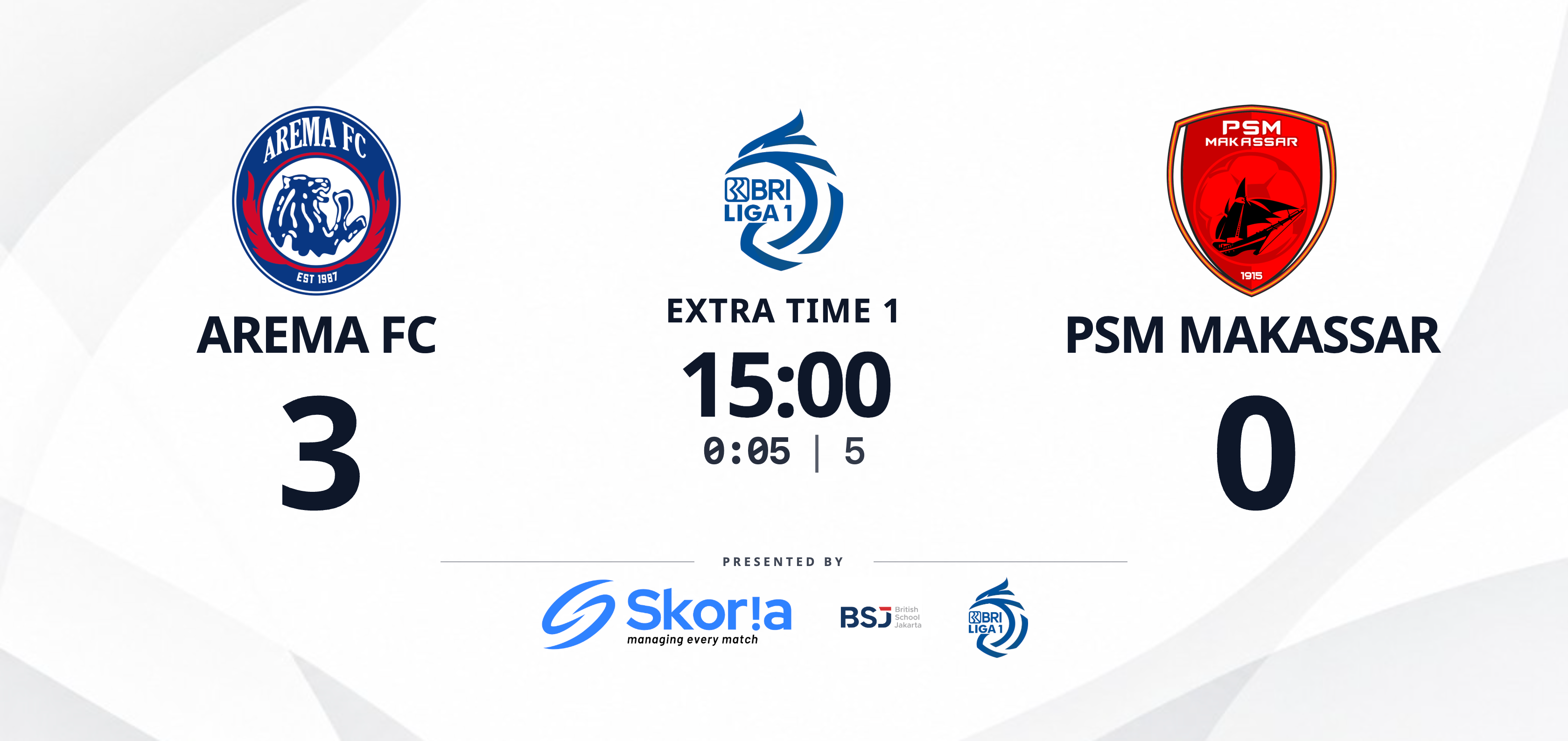
Scoreboard
This is the standard view during play. It shows the score, competition badge, period, clock, and each team's scorers grouped by player. Penalties and own goals are marked at the relevant minute. Up to three sponsor images appear in a strip along the bottom. When Added Time is announced, a smaller counter beside the clock shows the extra minutes. Automatically generated Home vs Away names do not appear on this board. The main clock shows elapsed time without an added-time suffix.
Ini adalah tampilan standar selama pertandingan. Tampilan ini menunjukkan skor, lambang kompetisi, periode, jam, dan pencetak gol setiap tim yang dikelompokkan berdasarkan pemain. Penalti dan gol bunuh diri ditandai pada menit terjadinya. Hingga tiga gambar sponsor tampil di strip bagian bawah. Saat Added Time diumumkan, penghitung kecil di samping jam menunjukkan waktu tambahan. Nama Home vs Away yang dibuat otomatis tidak tampil di papan ini. Jam utama menampilkan waktu berjalan tanpa akhiran waktu tambahan.
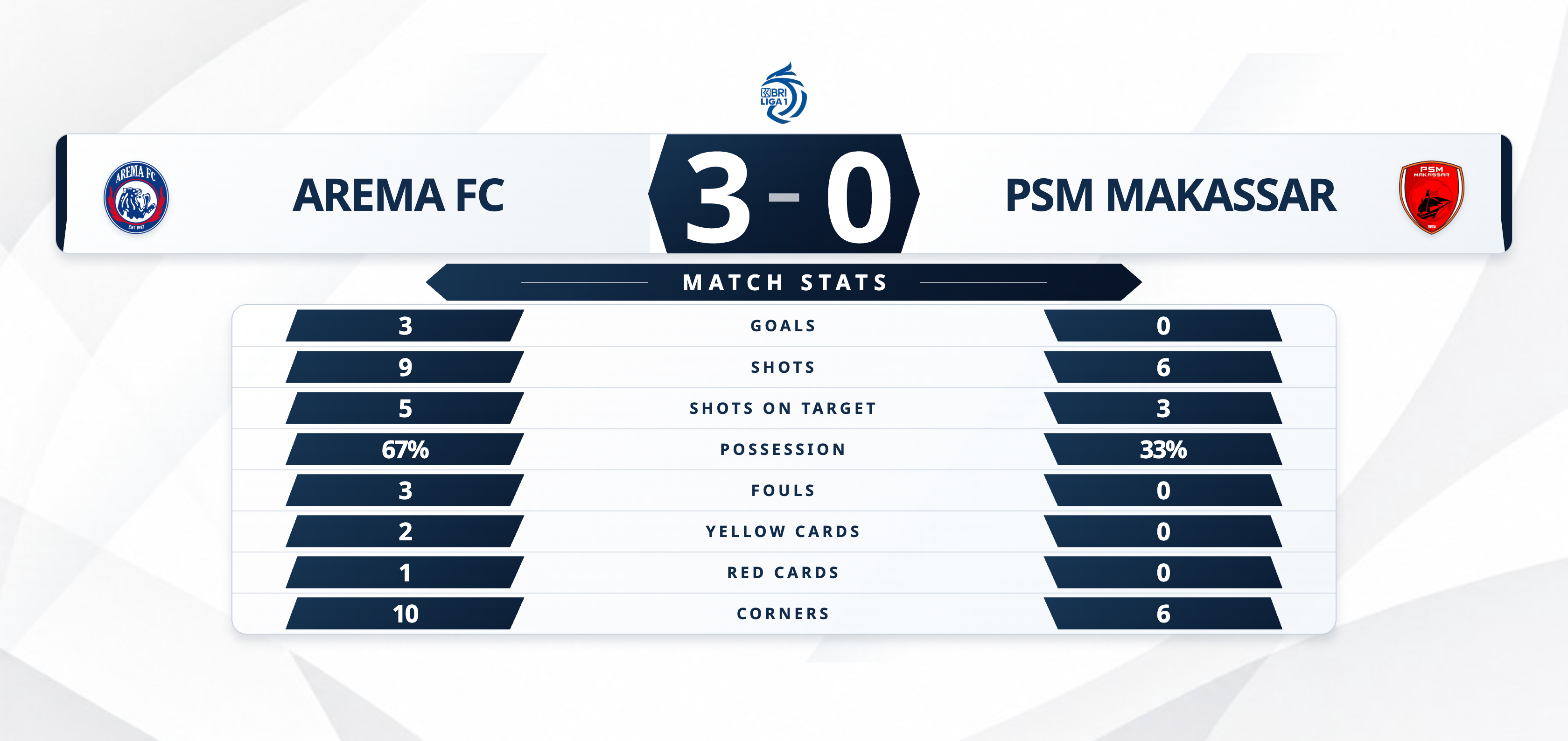
Match statistics
This view compares shots, shots on target, possession, fouls, cards, and corners side by side. Enter manual values in the Match Statistics workspace. That tab also provides the only Audience Screen preview in the console. Use it during a stoppage or at half-time.
Tampilan ini membandingkan tembakan, tembakan tepat sasaran, penguasaan bola, pelanggaran, kartu, dan tendangan sudut secara berdampingan. Masukkan nilai manual di ruang kerja Match statistics. Tab ini juga merupakan satu-satunya pratinjau Audience Screen di konsol. Gunakan saat permainan berhenti atau saat istirahat.
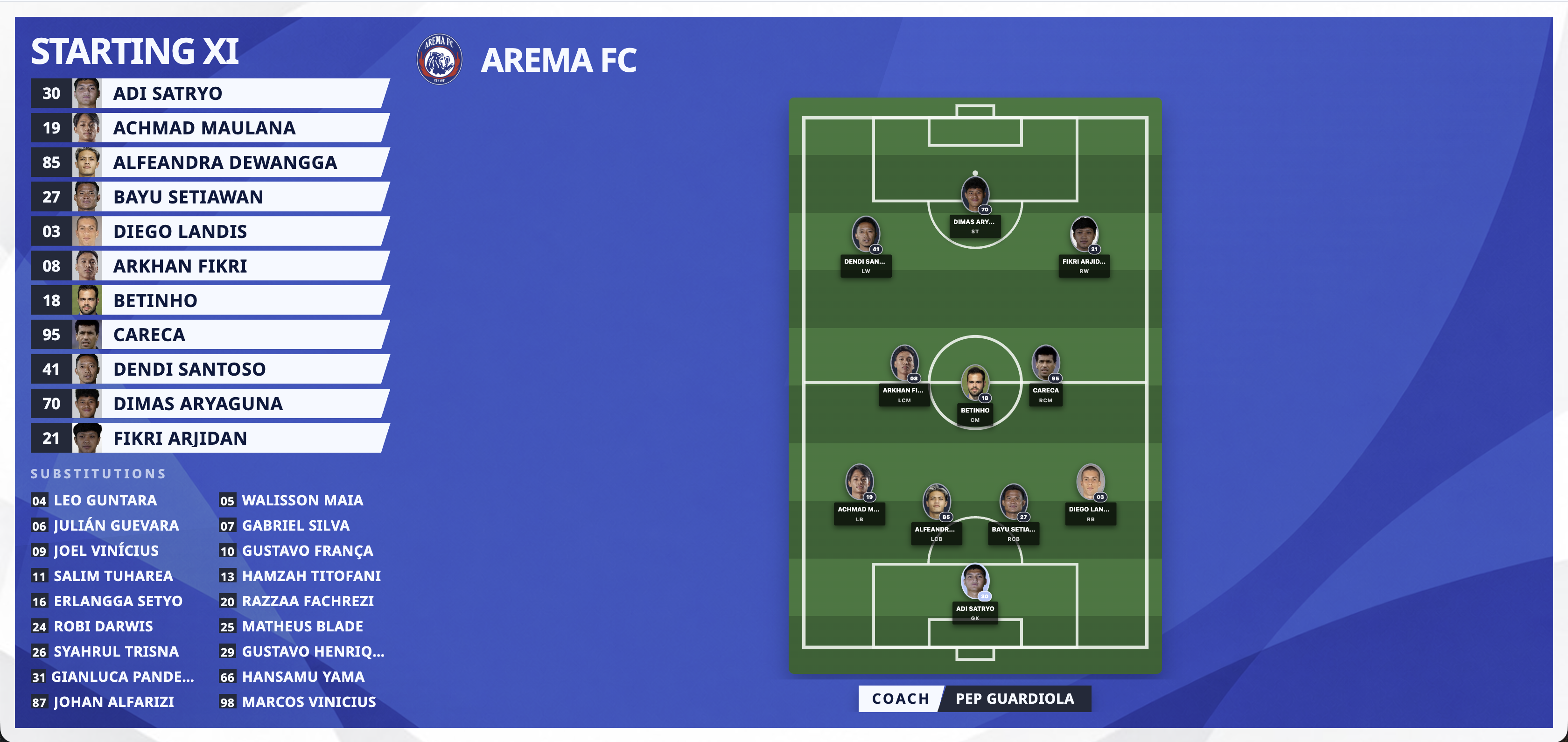
Home & away lineup
This view lays out the Starting XI on the pitch and lists substitutes below. Starters appear line by line, then the complete board remains on screen. The view is unavailable until the side has a formation or lineup image. It is normally shown before kickoff.
Tampilan ini menata Starting XI di lapangan dan menampilkan pemain cadangan di bawahnya. Starter muncul per lini, lalu papan lengkap tetap ditampilkan. Tampilan ini tidak tersedia sampai sisi tersebut memiliki formasi atau gambar line-up. Biasanya ditampilkan sebelum kickoff.
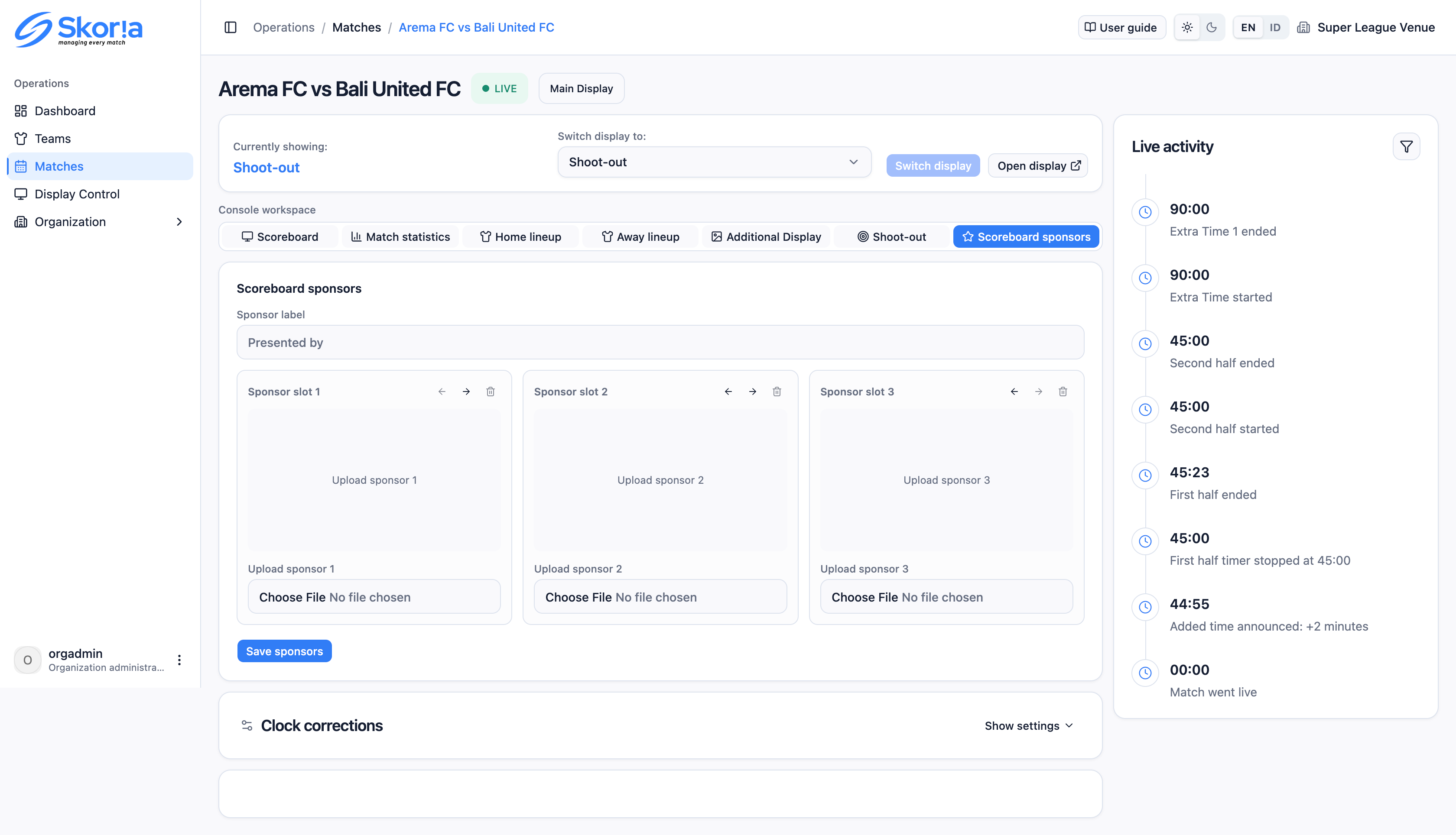
Scoreboard sponsors
Up to three sponsor images can appear in a compact strip along the bottom of the Scoreboard, in slot order, with the optional "Presented by" label. Empty slots are left out. There is no separate Sponsors view and no rotation. Replace the images from the Scoreboard sponsors console tab, even during a match. The strip is hidden while Show goals and cards displays the scorers panel.
Hingga tiga gambar sponsor dapat tampil di strip ringkas bagian bawah Scoreboard, sesuai urutan slot, dengan label "Presented by" opsional. Slot kosong tidak ditampilkan. Tidak ada tampilan Sponsors terpisah dan tidak ada rotasi. Ganti gambar dari tab konsol Scoreboard sponsors, termasuk saat pertandingan berlangsung. Strip disembunyikan saat Show goals and cards menampilkan panel pencetak gol.

Additional display
Use this slot for a league promotion, hype graphic, half-time message, or other prepared content. Upload the image when you create the match, or replace it here.
Gunakan slot ini untuk promosi liga, grafis penyemangat, pesan saat istirahat, atau materi lain yang sudah disiapkan. Unggah gambar saat membuat pertandingan atau ganti dari bagian ini.

Event presentations
You do not select this view yourself. A goal, foul, card, or substitution interrupts the base view for ten seconds. The first kickoff overlay lasts six seconds. The base view then returns. Penalty awards have no overlay. Dismiss an overlay from the console. Reconnecting does not replay it.
Tampilan ini tidak dipilih secara manual. Gol, pelanggaran, kartu, atau pergantian akan menyela tampilan dasar selama sepuluh detik. Overlay kickoff pertama berlangsung enam detik. Setelah itu, tampilan dasar kembali. Pemberian penalti tidak memiliki overlay. Tutup overlay dari konsol. Penyambungan ulang tidak akan memutarnya lagi.


Penalty shoot-outs
Adu penalti
If the fixture goes to a penalty shoot-out, Skoria replaces the normal scoreboard with a dedicated shoot-out board.
Jika pertandingan berlanjut ke adu penalti, Skoria mengganti papan skor biasa dengan papan khusus adu penalti.
- After regulation and Extra Time are complete, the Shoot-outAdu penalti tab appears in the console workspace beside Scoreboard and the other tabs.
Setelah waktu normal dan Extra Time selesai, tab Shoot-outAdu penalti muncul di ruang kerja konsol di samping Scoreboard dan tab lainnya.
- Record each kick by choosing the team, outcome, and an optional taker. An unattributed kick shows Goal or Miss without a name. Each kick appears immediately in Live activity, along with system markers such as "Penalty shoot-out started; home first."
Catat setiap tendangan dengan memilih tim, hasil, dan penendang jika ada. Tendangan tanpa atribusi menampilkan Goal atau Miss tanpa nama. Setiap tendangan langsung muncul di Live activity, bersama penanda sistem seperti "Penalty shoot-out started; home first."
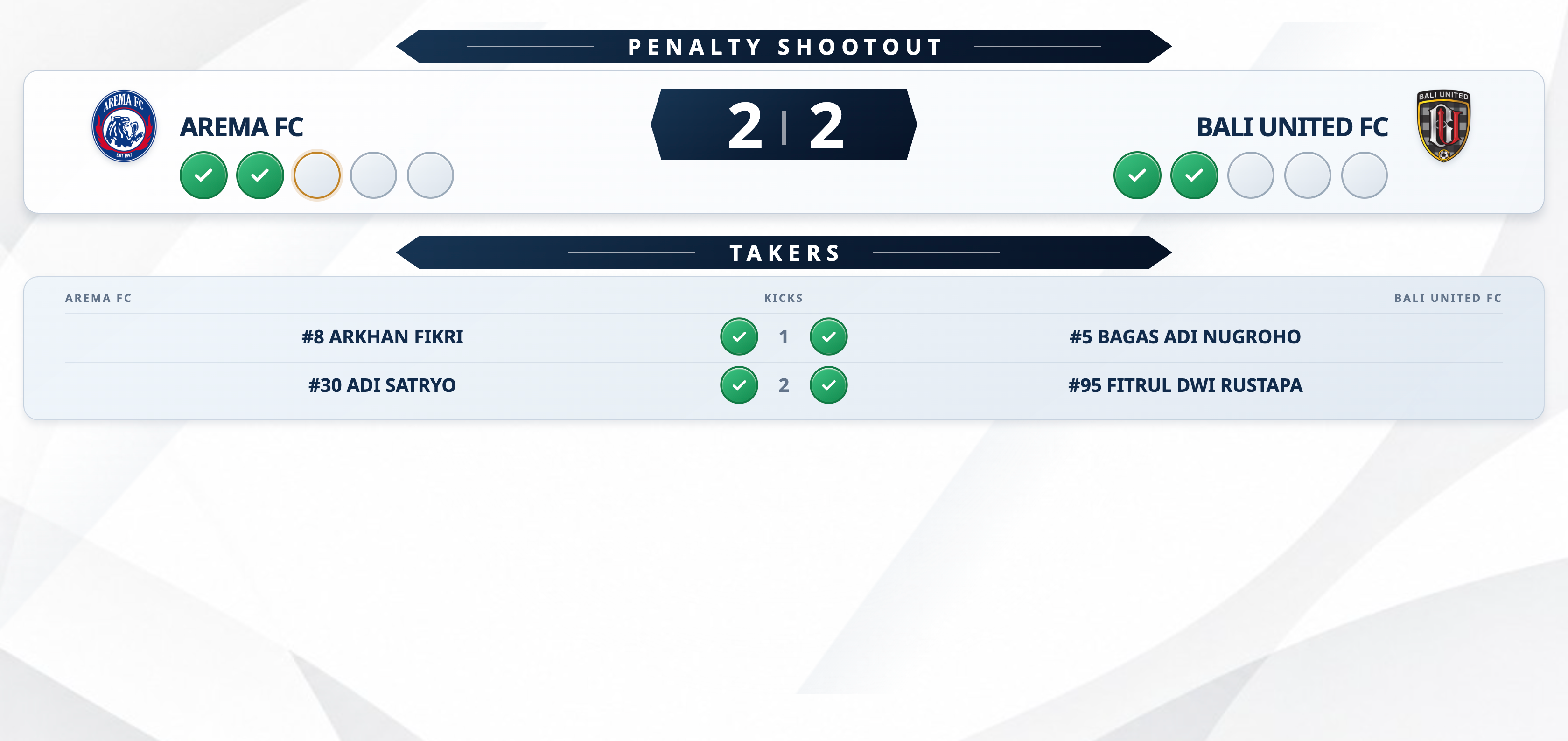
- Switch the audience display to Shoot-out to show the dedicated board instead of the ordinary scoreboard. It shows each team's crest and name, a row of kick slots, and the score between them. Once kicks are recorded, the TAKERS table lists each recorded round by player. A scored kick turns its slot green with a check. A miss turns it red with a cross. The single gold-ringed empty slot marks the next kicker, and a FINAL SCORE pill appears when the shoot-out is decided. Long team names use a fitted size and may wrap to two lines. As sudden-death rounds accumulate, the taker table shrinks to keep the names visible.
Alihkan tampilan penonton ke Shoot-out untuk menampilkan papan khusus, bukan Scoreboard biasa. Papan ini menampilkan logo dan nama setiap tim, deretan slot tendangan, serta skor di tengah. Setelah tendangan dicatat, tabel TAKERS menampilkan setiap ronde berdasarkan pemain. Slot tendangan yang masuk berubah hijau dengan tanda centang, sedangkan yang gagal berubah merah dengan tanda silang. Slot kosong dengan lingkaran emas menandai penendang berikutnya, dan pil FINAL SCORE muncul saat adu penalti diputuskan. Nama tim yang panjang menggunakan ukuran yang disesuaikan dan dapat terbagi menjadi dua baris. Saat ronde sudden death bertambah, tabel penendang mengecil agar nama tetap terlihat.
Fixing the clock
Memperbaiki jam
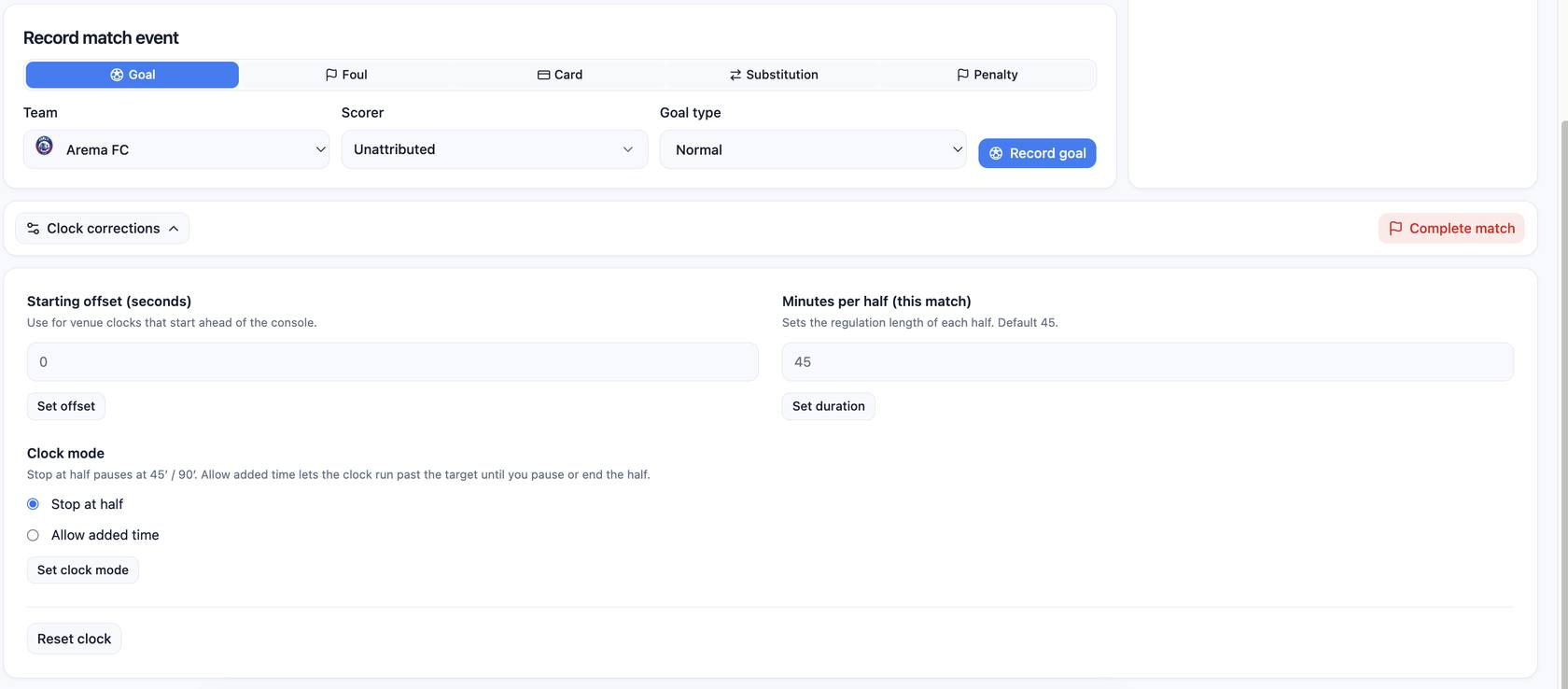
The Clock correctionsKoreksi jam card is in the left column of the Scoreboard workspace, below Record match event and the incident summary. Use the Show/Hide toggle to collapse it. Use this card when the stadium and console clocks are out of sync, or when a half needs a different duration.
Kartu Clock correctionsKoreksi jam berada di kolom kiri ruang kerja Scoreboard, di bawah Record match event dan ringkasan insiden. Gunakan tombol Show/Hide untuk melipatnya. Gunakan kartu ini saat jam stadion dan jam konsol tidak sinkron, atau saat durasi babak perlu diubah.
| Field | What it's for | Kegunaannya |
|---|---|---|
| Starting offset (seconds) + Set offset | Adjusts the console clock to match a venue clock that started ahead of it. Enter the difference in seconds. | Menyesuaikan jam konsol dengan jam venue yang dimulai lebih dahulu. Masukkan selisihnya dalam detik. |
| Minutes per half (this match) + Set duration | Sets the regulation target for each half of this fixture only, with a default of 45 minutes. With Stop at half, the clock stops at that target. With Allow added time, it continues past the target until you pause or end the half. | Mengatur target regulasi setiap babak khusus untuk pertandingan ini, dengan bawaan 45 menit. Dengan Stop at half, jam berhenti pada target tersebut. Dengan Allow added time, jam terus berjalan melewati target sampai dijeda atau babak diakhiri. |
| Clock mode + Set clock mode | Stop at half stops the clock at 45' / 90' and at the Extra Time targets. Allow added time lets it continue past the target until you pause or end the half. If you switch back to Stop at half after passing the target, the clock stops immediately. | Stop at half menghentikan jam pada 45' / 90' dan target Extra Time. Allow added time membiarkan jam melewati target sampai Anda menjeda atau mengakhiri babak. Jika kembali ke Stop at half setelah melewati target, jam langsung berhenti. |
| Reset clock | Removes any offset or override and restores the match's original clock settings. | Menghapus offset atau pengaturan tambahan dan mengembalikan pengaturan jam awal pertandingan. |
The Clock modeMode jam controls how the clock handles stoppages. The default, Stop at halfBerhenti di akhir babak, stops the clock at the period target. Allow added timeIzinkan injury time lets it run past that target. In either mode, use Pause, Resume, and the end-of-half controls to follow the referee.
Clock modeMode jam menentukan cara jam menangani waktu tambahan. Mode bawaan, Stop at halfBerhenti di akhir babak, menghentikan jam pada target periode. Allow added timeIzinkan injury time membiarkan jam berjalan melewati target. Dalam kedua mode, gunakan kontrol Pause, Resume, dan akhir periode untuk mengikuti wasit.
Ending the match
Mengakhiri pertandingan
This final step is short, but do not use its console control until the match is finished.
Langkah ini singkat, tetapi jangan gunakan kontrol konsol ini sebelum pertandingan selesai.
The red Complete matchSelesaikan pertandingan button at the bottom of the Scoreboard tab closes the fixture permanently. Treat it as final. Before selecting it, check that the score, cards, and, if needed, shoot-out are recorded correctly. This is when the match stops being "live." Organization administrators can later see who completed it in Audit Logs as match.completed and who first put it on air as match.activated.
Tombol merah Complete matchSelesaikan pertandingan di bagian bawah tab Scoreboard menutup jadwal pertandingan secara permanen. Anggap ini sebagai tindakan final. Sebelum memilihnya, pastikan skor, kartu, dan adu penalti jika ada sudah tercatat dengan benar. Pada titik ini pertandingan berhenti berstatus "live". Administrator organisasi dapat melihat siapa yang menyelesaikannya di Audit Logs sebagai match.completed dan siapa yang pertama menayangkannya sebagai match.activated.
Reviewing history
Meninjau riwayat
Completed and Correction matches keep their final score, rosters, and timeline in Matches history. Download a copy for the archive or match commissioner.
Pertandingan berstatus Completed dan Correction menyimpan skor akhir, roster, dan linimasanya di Matches history. Unduh salinan untuk arsip atau komisaris pertandingan.
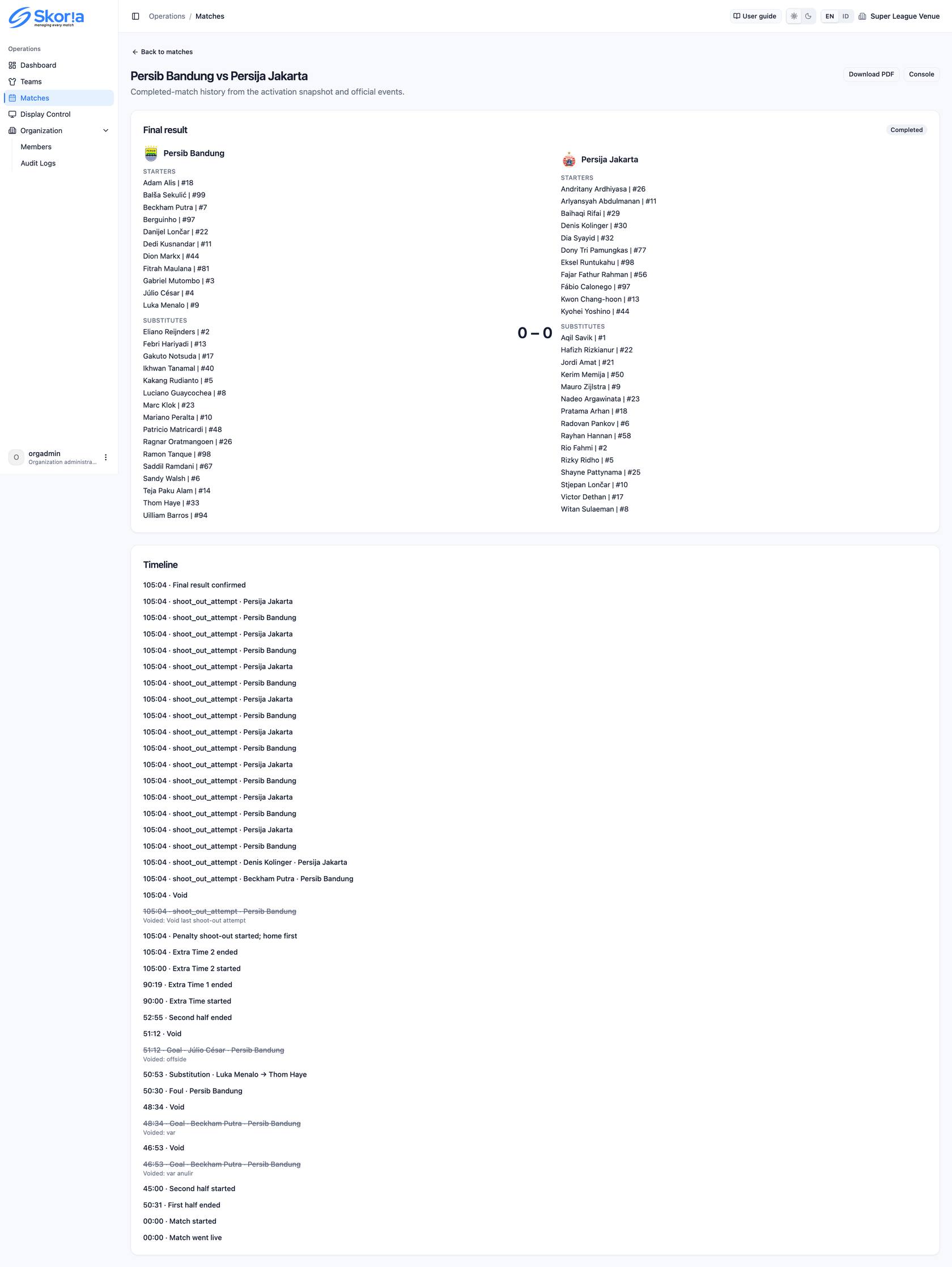
- In Matches, open the history for a completed match. The top card shows the final result and status badge, both team crests, and the saved StartersStarter and SubstitutesCadangan lists. Each line uses the format Name | #number.
Di Matches, buka history pertandingan yang sudah selesai. Kartu atas menampilkan hasil akhir dan lencana status, logo kedua tim, serta daftar tersimpan StartersStarter dan SubstitutesCadangan. Setiap baris menggunakan format Name | #number.
- The timeline lists every event, with the newest event last. Each row shows the clock time, event type, players, and team. Voided rows remain visible with a strikethrough and the reason for voiding.
Linimasa menampilkan setiap kejadian dengan kejadian terbaru di bagian akhir. Setiap baris menunjukkan waktu, jenis kejadian, pemain, dan tim. Baris yang dibatalkan tetap terlihat dengan coretan dan alasan pembatalannya.
- Select Download PDFUnduh PDF to create a PDF containing the title, status, score, venue and schedule, both rosters, and the full timeline. The filename uses the match title in the form {title}-history.pdf.
Pilih Download PDFUnduh PDF untuk membuat PDF yang berisi judul, status, skor, venue dan jadwal, kedua roster, serta linimasa lengkap. Nama file menggunakan judul pertandingan dalam format {title}-history.pdf.
Quick reference
Rujukan cepat
Use this table as a quick reminder of the controls you will use most during a Live Match.
Gunakan tabel ini sebagai pengingat singkat untuk kontrol yang paling sering dipakai selama Live Match.
| Control | Does this | Fungsinya |
|---|---|---|
| Start match / Pause match / Resume match / End first half | Start, pause, resume, or end the clock for the current period. By default, it stops at 45:00. Allow added time lets it continue past the target. | Memulai, menjeda, melanjutkan, atau mengakhiri jam untuk periode saat ini. Secara bawaan jam berhenti pada 45:00. Allow added time membiarkannya terus berjalan melewati target. |
| -1 second / +1 second | Move the clock back or forward to match the referee or stadium time. | Memundurkan atau memajukan jam agar sesuai dengan waktu wasit atau stadion. |
| Clock mode / Set clock mode | Stop at half stops at the period target. Allow added time runs past it. Set the mode in Match Review or live in Clock corrections. | Stop at half menghentikan jam pada target periode. Allow added time membiarkannya melewati target. Atur mode di Match Review atau saat Live melalui Clock corrections. |
| Start Extra Time / Start shoot-out | Move a tied knockout match into Extra Time, then into a penalty shoot-out if it is still tied. Each Extra Time period starts at 0:00. | Memindahkan pertandingan knockout yang masih imbang ke Extra Time, lalu ke adu penalti jika tetap imbang. Setiap periode Extra Time dimulai dari 0:00. |
| Goal / Foul / Card / Substitution / Penalty | Record an event, update the scoreboard, and add it to Live activity. Goals, fouls, cards, and substitutions also play a ten-second presentation. | Mencatat kejadian, memperbarui Scoreboard, dan menambahkannya ke Live activity. Gol, pelanggaran, kartu, dan pergantian juga memutar presentasi selama sepuluh detik. |
| Switch display to: + Switch display | Choose the next Audience Screen view. The current view stays on screen until you confirm the change. | Memilih tampilan berikutnya di Audience Screen. Tampilan saat ini tetap berada di layar sampai Anda mengonfirmasi perubahan. |
| Dismiss presentation | Clear an active kickoff or event overlay from connected Audience Screens. | Menutup overlay kickoff atau kejadian yang sedang aktif dari Audience Screen yang terhubung. |
| Open display | Open the public audience output in a separate window for projecting or streaming. | Membuka keluaran publik di jendela terpisah untuk diproyeksikan atau disiarkan. |
| Show goals and cards | Show or hide scorer names and card totals on the Scoreboard. This does not replay overlays. | Menampilkan atau menyembunyikan nama pencetak gol dan jumlah kartu di Scoreboard. Tidak memutar ulang overlay. |
| Added Time + Announce added time | Enter the referee's added-time announcement in minutes. The Audience Screen then shows the Added Time counter beside the main clock. | Memasukkan pengumuman waktu tambahan wasit dalam menit. Audience Screen kemudian menampilkan penghitung Added Time di samping jam utama. |
| Scoreboard sponsors tab | Upload up to three sponsor images and an optional "Presented by" label. They appear in a strip at the bottom of the Scoreboard view. | Mengunggah hingga tiga gambar sponsor dan label "Presented by" opsional. Gambar tersebut tampil sebagai strip di bagian bawah Scoreboard. |
| Go Live vs. Continue to lineup | Go Live, from Match Review or the lineup screen, freezes the snapshot, requires one named Audience Screen, and opens the console. Continue to lineup is optional. Save progress keeps a draft. | Go Live, dari Match Review atau layar line-up, membekukan snapshot, meminta satu Audience Screen bernama, dan membuka konsol. Continue to lineup bersifat opsional. Save progress menyimpan draf. |
| Update statistics | Save the manual statistics in the Match statistics workspace. Use Switch display separately to show that board. | Menyimpan statistik manual di ruang kerja Match statistics. Gunakan Switch display secara terpisah untuk menampilkan papan tersebut. |
| Complete match | Permanently close the fixture. Use this control last. The action appears in Audit Logs as match.completed. | Menutup jadwal pertandingan secara permanen. Gunakan kontrol ini paling akhir. Tindakan ini tercatat di Audit Logs sebagai match.completed. |
| Display Control / Audience Screen | Use this top-level sidebar item to choose a named screen, open its URL, copy it, or test it. Each screen has its own Standby. New venues start with four screens. | Gunakan menu utama ini untuk memilih layar bernama, membuka URL-nya, menyalin URL, atau mengujinya. Setiap layar memiliki Standby sendiri. Venue baru memiliki empat layar. |
| Multiview / Save Multiview | Build one public view from 2 to 4 screens. Two appear side by side, three use two panes on top and one below, and four use a 2x2 grid. An empty mix shows the organization Standby. | Membuat satu tampilan publik dari 2 sampai 4 layar. Dua layar tampil berdampingan, tiga layar memakai dua panel di atas dan satu di bawah, sedangkan empat layar memakai grid 2x2. Campuran kosong menampilkan Standby organisasi. |
| Download PDF | In match history, create a PDF containing the score, rosters, and timeline. See Reviewing history. | Di history pertandingan, membuat PDF yang berisi skor, roster, dan linimasa. Lihat Reviewing history. |
| Members / Add member | Organization administrators create Operator or Organization administrator accounts. Passwords must contain at least 12 characters. Disable an account to prevent sign-in. | Administrator organisasi membuat akun Operator atau Administrator organisasi. Password harus terdiri dari minimal 12 karakter. Nonaktifkan akun untuk mencegah login. |
| Audit Logs | See who activated (match.activated), voided (match.event.voided), or completed (match.completed) a match. Organization administrators only. Action names remain in English. | Melihat siapa yang mengaktifkan (match.activated), membatalkan (match.event.voided), atau menyelesaikan (match.completed) pertandingan. Hanya tersedia untuk administrator organisasi. Nama tindakan tetap dalam bahasa Inggris. |